 KHIZHNYAKOV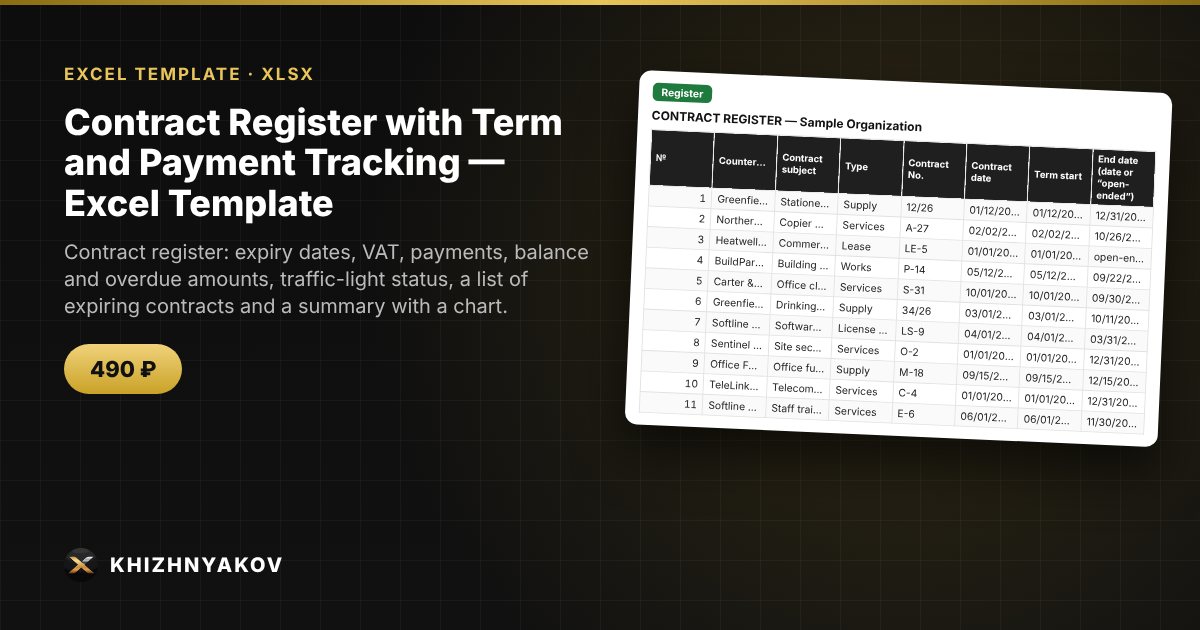
What it is for
Keep all your contracts in one table and see in time which ones are about to end, which have no payments, and where payment exceeded the contract amount. Excel calculates paid, balance and overdue amounts from the payments automatically.
What is inside
- “Settings”: VAT rate, VAT mode, number of days before a warning, and lists of contract types, counterparties and responsible persons.
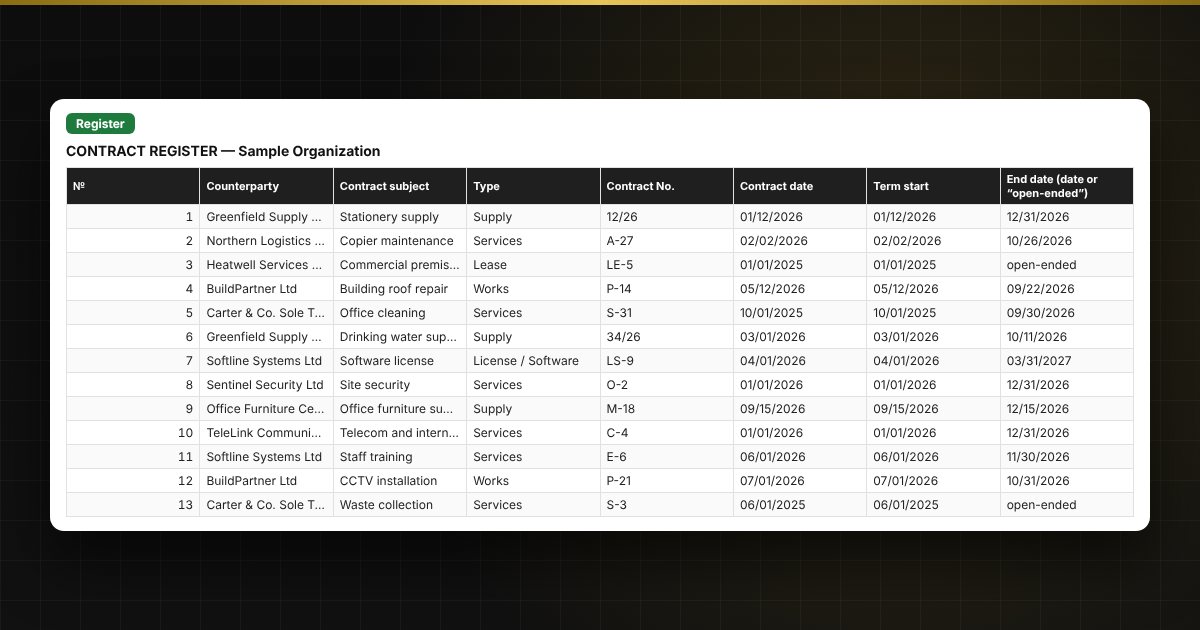
- “Register”: up to 300 contracts; term (a date or “open-ended”), amount, VAT “incl.” or “on top”, renewal, responsible person, paid, balance, overdue, warnings and a traffic light.
- “Payments”: up to 1,500 payments linked by contract number.
- “Expiring”: a list of contracts nearing their end, sorted by urgency without macros.
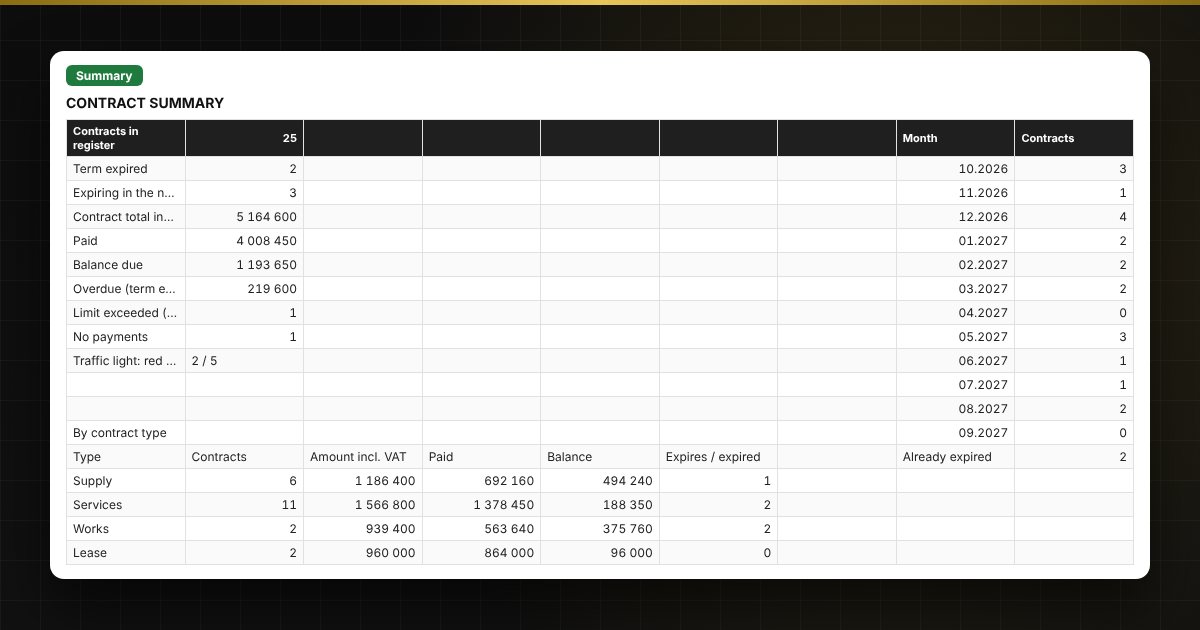
- “Summary”: by type and counterparty, top 10 by balance, and a chart of expiries by month.
Who it is for
Lawyers, procurement specialists, accountants, managers of small organizations and self-employed people.
Compatibility
Excel 2007 and later, LibreOffice. No macros or external links. The VAT rate is an editable setting: check the current value. The file is in English.