KHIZHNYAKOV
How to Build a Deadline Tracker in Excel with Traffic-Light Colors
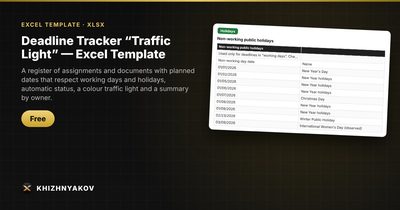
Deadline Tracker “Traffic Light” — Excel Template — Download free →
Instructions from a manager, incoming letters that need an answer, team tasks: they all come with a deadline, and they all end up in someone's inbox or head. A single register where every item has an owner, a due date and an automatic colour is the cheapest control system there is.
The traffic-light idea is simple. Red means overdue, yellow means the deadline is close, green means there is time. Here is how to build one in Excel.
Step 1: Design the register
One row per item. Columns: number, description, owner, date received, deadline (days), specific due date (optional), planned date, date completed and status.
Support two ways of setting a deadline: a number of days (“reply within 5 working days”) or a specific date (“by the 20th”). If a specific date is given, it should take priority.
Step 2: Calculate the planned date with WORKDAY
Calendar-day arithmetic ignores weekends. WORKDAY skips Saturday and Sunday and, optionally, a list of holidays:
=IF(F2<>"",F2,WORKDAY(D2,E2,Holidays!$A$2:$A$30))
WORKDAY does not count the start day. For example, an item received on Monday, November 9 with a 5-working-day deadline is due on Monday, November 16: the days counted are 10, 11, 12, 13 and 16. If November 11 (Veterans Day in the US) is in your holiday list, the due date moves to Tuesday, November 17. Keep the holiday list on its own sheet and update it every year.
If you want calendar days, use =D2+E2.
Step 3: Calculate the status
Add a small settings area with the yellow-zone threshold (days before the deadline when a row turns yellow) and the “as of” date. An empty as-of cell should mean today:
=IF(Settings!$B$2="",TODAY(),Settings!$B$2)
Status:
=IF(H2<>"","Completed",IF(G2<AsOf,"Overdue",IF(G2-AsOf<=Yellow,"Due soon","On track")))
The as-of option is handy for checking how things will look on Friday, or for reviewing a past date.
Step 4: Apply the colors
Select the whole register and add conditional formatting rules based on a formula, such as =$I2="Overdue" (red fill), =$I2="Due soon" (yellow fill) and =$I2="On track" (green fill). Put “Completed” in grey so finished items fade out. Use light fills with dark text so the rows stay readable when printed in black and white.
Step 5: Summarise by owner
Managers want one view. For each owner, count total, completed, in progress and overdue with COUNTIFS:
=COUNTIFS(Register!C:C,A2,Register!I:I,"Overdue")
And the percentage completed on time: items completed on or before the planned date, divided by completed items. Add a short list of the ten most overdue items using LARGE and INDEX/MATCH, or just sort the register by status. A couple of charts are enough: one by owner, one by status.
Common mistakes
- Counting the day received. Decide on a rule and stick to it. WORKDAY does not count it.
- Forgetting holidays. The tracker will show you on time when you are not.
- Transferred working days. In countries that move working Saturdays, a plain WORKDAY will not know. Add them manually if it matters to you.
- Letting completed rows stay colourful. Fade them out so the real problems stand out.
- No owner. Every row needs a name.
Free ready-made template
The “Deadline Tracker ‘Traffic Light’” template is free and works as a universal register for manager's instructions, incoming documents and team tasks.
- The Register sheet has up to 500 rows; the deadline can be a number of calendar or working days, or a specific date.
- The Holidays sheet holds non-working days for 2026 and 2027, an editable list used to calculate working days.
- The Settings sheet holds owners (drop-down list), the “yellow zone” threshold, and the “calculate as of date” mode (today or a manual date).
- The Summary sheet shows, for each owner, total, completed, in progress, overdue and percent completed on time, the 10 most overdue tasks, and charts.
Working days are calculated with the WORKDAY function: the day received is not counted, weekends are Saturday and Sunday, plus the dates from the Holidays sheet. Transferred working Saturdays are not taken into account. A specific date, if entered, takes priority over the number of days. Check the holiday dates against your official calendar. The file works in Excel 2007 and newer and in LibreOffice, with no macros or external links.
FAQ
How do I choose the yellow-zone threshold?
Use roughly a quarter of your typical deadline: two days for a week-long deadline, five days for a month. Adjust it until yellow means “look at this now”.
Can I use this for projects?
Yes, for tracking tasks and deliverables. For tasks with dependencies and a timeline, a Gantt chart is a better view.
How do I stop people from marking things completed by mistake?
Make the completion date the only input for finishing, and protect the formula columns.
Does it send reminders?
A spreadsheet cannot email by itself without macros. Review the red and yellow rows at a fixed time each day.