KHIZHNYAKOV
How to Keep a Vegetable Garden Journal in Excel
Vegetable Garden Journal — Excel Template — Open the template →
Most gardeners start the season with good intentions and a paper notebook. By August the notes are scattered, nobody remembers when the carrots went in, and by autumn the question "was it worth it?" has no real answer. A simple spreadsheet fixes this, and it takes about twenty minutes to set up.
This guide shows how to build a garden journal in Excel: what to record, which formulas give you planned harvest dates and yield, and how to work out what your own vegetables cost per pound. You can follow it with a blank workbook. At the end there is a ready-made version if you would rather not build it yourself.
What a garden journal should answer
Before you create columns, decide which questions the journal must answer. For most home gardens they are:
- When do I harvest each bed?
- How much did I spend on seeds, soil, film, tools and water?
- How much did each crop yield, and what is that worth at store prices?
- Which crops are worth the space next year?
Everything else is decoration. Every column you add should serve one of these four questions.
Step 1: Build a crop list
Start with a small reference table on its own sheet. For each crop, record the days from sowing to harvest and a typical store price per pound or kilogram. Keep the numbers realistic for your variety and climate, because seed packets give a range and your own experience is better.
| Crop | Days to harvest | Price per kg (USD) |
|---|---|---|
| Radish | 30 | 3.00 |
| Carrot | 100 | 1.80 |
| Tomato | 110 | 4.00 |
| Cucumber | 60 | 2.50 |
Step 2: One row per bed
On a second sheet, make one row for each bed or greenhouse. The columns you need: bed name, area in square meters, crop, sowing date, planned harvest date, status, harvested kilograms and costs.
The planned harvest date is just the sowing date plus the days from your crop list. If the crop name is in column C, the sowing date in D, and your crop list is on a sheet called Lists with names in A and days in B:
=D2+VLOOKUP(C2,Lists!A:B,2,FALSE)
Format the result as a date. A carrot bed sown on May 1 shows August 9 with the sample figures above.
Step 3: A status that tells you what to do
A date column is passive. A status column tells you what to do today. You can build it with nested IF statements that compare today's date with the planned date:
=IF(D2="","Planned",IF(TODAY()<E2-7,"Growing",IF(TODAY()<E2,"Harvest soon","Ready to harvest")))
Add conditional formatting, green for ready and yellow for soon, and you can open the file in the morning and see at a glance which beds need attention.
Step 4: Log costs and harvest separately
Two more sheets keep the bed table clean. One is a cost log with date, category (seeds, soil, fertilizer, tools, film), amount and the bed it belongs to. The other is a harvest log with date, bed and kilograms.
Then SUMIF connects them to the beds:
=SUMIF(Harvest!B:B,A2,Harvest!C:C)
This adds up all harvest entries for the bed named in A2. Do the same for costs. Entering each harvest as a separate line is more work than typing one season total, but it also gives you a monthly picture of when the garden actually produces.
Step 5: Work out value, cost and result
Multiply the harvested kilograms by the store price from your crop list to get a notional value. Subtract the costs to get a result per bed. A short worked example:
- Tomato bed, 6 m2. Harvested: 42 kg at 4.00 USD = 168 USD.
- Costs: seedlings 14 USD, soil and fertilizer 22 USD, supports 9 USD = 45 USD.
- Result: 123 USD, or about 20 USD per square meter.
Divide yield by area for kilograms per square meter. That single number is the best way to compare crops, because it accounts for how much space each one takes up.
Common mistakes
- Ignoring general costs. Film, a hose or a new spade belong to the season, not to one bed. Record them without a bed and include them in the overall result only.
- Using seed packet days as gospel. Replace them with your own numbers after the first season.
- Valuing the harvest at premium prices. Use ordinary store prices, or the result will flatter the garden.
- Typing totals instead of entries. Without dates you cannot see when the harvest peaks.
Ready-made template: garden journal
If you would rather start with a finished workbook, the template follows exactly this method. It is paid, works in Excel 2007 and newer and in LibreOffice, and has no macros.
- Lists: crops with days from sowing to harvest and price per kilogram, cost categories and the season year.
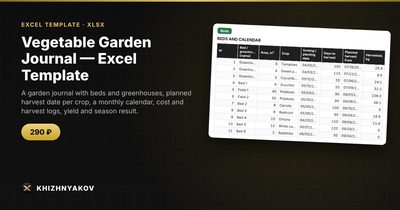
- Beds: up to 60 beds and greenhouses with area, crop, sowing date, planned harvest date, status, harvested amount, costs, result and a monthly calendar.
- Costs and Harvest: logs for 1000 and 1500 entries; a cost can be linked to a bed.
- Summary: totals by crop, costs and harvest by month, and two charts.
The statuses are Planned, Growing, Harvest soon, Ready to harvest and Harvesting, so you always know what each bed needs. The sample crop periods are approximate; replace them with your own. The calculation is approximate too, and the harvest value is a notional figure at the prices you set.
FAQ
How many beds should I track?
Track everything you actually plant, even small beds. A row costs nothing, and tiny beds are often the ones that surprise you with a high yield per square meter.
Should I include my own labor in the costs?
Most home gardeners do not, and that is fine. Just be consistent from year to year, otherwise comparisons are meaningless. If you want to see the true cost, add a separate category for hours.
What about perennials and fruit trees?
Give each one a row and log costs and harvest as usual. Their first years will show a loss; look at the multi-year picture before judging them.
Can I reuse the file next season?
Yes. Save a copy, clear the beds and logs, keep the crop list with your corrected days to harvest, and change the season year. Your own numbers get better every year.