KHIZHNYAKOV
How to Make a Gantt Chart in Excel, Step by Step
Gantt Chart — Project Plan in Excel Template — Download free →
A Gantt chart answers three questions in one picture: what has to be done, by when, and what is falling behind. You can draw one with a stacked bar chart, but that approach is fiddly and breaks the moment a date changes. A better way is to let the cells themselves become the bars, using formulas and conditional formatting. When a start date or duration changes, the chart redraws itself.
Here is how to build it, including task dependencies and working days.
Step 1: Lay out the task table
Create columns for task number, task name, assignee, start date, duration (working days), end date, depends on, and percent complete.
| No. | Task | Start | Days | End | Depends on | % done |
|---|---|---|---|---|---|---|
| 1 | Design | 11/2/2026 | 5 | 11/6/2026 | 100% | |
| 2 | Build | 11/9/2026 | 8 | 11/18/2026 | 1 | 40% |
| 3 | Testing | 11/19/2026 | 3 | 11/23/2026 | 2 | 0% |
Step 2: Calculate end dates with WORKDAY
Calendar-day arithmetic (start plus duration) puts tasks on weekends. Use WORKDAY instead, with a list of holidays:
=WORKDAY(C2,D2-1,Holidays!$A$2:$A$20)
The “minus 1” matters because the start day itself counts as day one. Design starts Monday, November 2 and lasts five working days, so it ends Friday, November 6. If you want a task to span calendar days instead, simply use =C2+D2-1.
Step 3: Link tasks with dependencies
For a task that depends on another, the start date is the next working day after the predecessor ends:
=IF(F3="",C3,WORKDAY(INDEX($E$2:$E$100,MATCH(F3,$A$2:$A$100,0)),1,Holidays!$A$2:$A$20))
Build starts the working day after Design finishes, Monday, November 9. Eight working days later it ends Wednesday, November 18, and Testing starts on November 19 and ends on November 23, because the weekend is skipped. Move Design by two days and everything downstream shifts with it.
Step 4: Draw the timeline with conditional formatting
Put a row of dates across the top (for example from column J onwards), using =J4+1 to step one day at a time. Format them as “d” or as narrow day-of-week letters. Then select the grid under the dates and add a conditional formatting rule with this formula:
=AND(J$4>=$C5,J$4<=$E5)
Choose a fill colour. Every cell between a task's start and end date now shades, which is your bar. Add a second rule on top for the completed part, in a darker colour:
=AND(J$4>=$C5,J$4<=$C5+ROUND(($E5-$C5+1)*$G5,0)-1)
A third rule highlights today's column: =J$4=TODAY(). A fourth can turn a bar red when the end date has passed and the task is not 100 percent done.
Step 5: Add a summary
Count tasks by status with COUNTIFS, and compute project completion as a weighted average: =SUMPRODUCT(D2:D100,G2:G100)/SUM(D2:D100). Weighting by duration is fairer than a simple average, since a ten-day task matters more than a one-day one.
Common mistakes
- Typing dates as text. If a date will not right-align, it is text. Retype it or use DATEVALUE.
- Forgetting holidays. Your plan will be a day or two short around public holidays.
- Too many tasks. If your chart needs scrolling to read, group tasks into phases.
- Hard-coding end dates. Always calculate them from start and duration.
- Never updating percent complete. An outdated Gantt chart is worse than none.
Free ready-made template
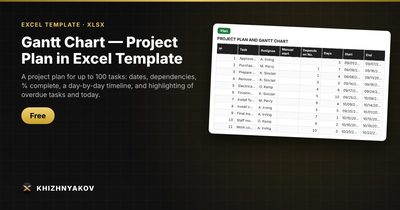
The “Gantt Chart — Project Plan in Excel” template is free and does everything above, so you can begin planning instead of building.
- “Settings” holds the project name, start date, working week, holidays and timeline step.
- “Plan” holds up to 100 tasks with assignee, start, duration, a “Depends on No.” dependency, percent complete and status. Working and calendar days are handled through the work calendar.
- “Summary” shows how many tasks are on time, in progress or overdue, the project completion percentage and the days to the end.
- “Instructions” explains how to fill it in within 10 minutes.
Bars are drawn automatically on the day scale, the completed part has a different colour, and overdue tasks and today are highlighted. The download includes an empty template and a filled-in sample with fictitious data. It works in Excel 2007 and later and in LibreOffice, with ordinary formulas and no macros. The calculation is indicative.
FAQ
Can Excel make a Gantt chart without a chart object?
Yes, and it is usually better. Conditional formatting on a date grid, as above, updates instantly and prints cleanly.
How do I show milestones?
Use a task with a duration of one day and a different colour rule, or add a column that marks milestones and format those rows differently.
How do I handle a task that can only start after two others finish?
Take the later of the two predecessor end dates with MAX, then add one working day. The simple one-column dependency in a basic plan covers most projects, but a MAX formula handles this case.
How many tasks can a Gantt chart handle in Excel?
Readability is the limit, not Excel. Past 40 or 50 rows, split the project into phases or build a summary chart on top.