KHIZHNYAKOV
Office Equipment Inventory in Excel: Track Assignment and Warranty
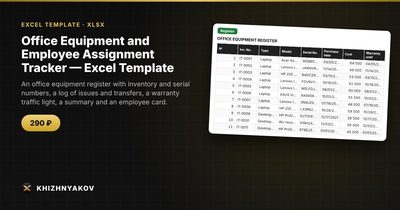
Office Equipment and Employee Assignment Tracker — Excel Template — Open the template →
Who has the laptop that was bought last March? Where is the serial number for the monitor that just died? Is the warranty still valid? In a small office these questions usually go to whoever has the best memory, and that person eventually leaves, gets sick or goes on holiday.
An equipment register solves this, and it does not need special software. This guide explains what to record, how to log issues and returns so the current holder is always clear, and how to build a simple warranty warning in Excel.
What to record for each item
One row per physical item. Start with these columns:
| Column | Why it matters |
|---|---|
| Inventory number | A unique label you stick on the device |
| Type | Laptop, monitor, phone, printer |
| Model and serial number | For warranty claims and insurance |
| Purchase date and cost | For warranty and replacement planning |
| Warranty until | The date the manufacturer coverage ends |
| Condition | New, good, worn, broken |
The inventory number is the key. Serial numbers are long and easy to mistype. A short number like IT-0042, printed on a label and attached to the device, is what everyone will use in conversation and in the log.
Keep the register and the issue log separate
Do not put "assigned to" in the register as a typed value. People change desks, laptops get swapped, and a typed name goes stale within weeks. Instead keep an issue log: one row for every event, with date, inventory number, operation (Issue, Transfer, Return to stock) and employee.
The current holder is then simply the latest operation for that inventory number. If the latest operation is a return, or there are none, the item is in stock. The full history stays in the log, which settles most "I never got that" disputes.
Build the warranty warning
You can do this with two columns.
- Add "Days to warranty end":
=F2-TODAY()where F2 is the warranty date. - Add "Warranty status":
=IF(G2<0,"Expired",IF(G2<=60,"Expiring","Valid")). - Colour Expiring cells yellow and Expired cells red with conditional formatting.
A worked example: a laptop bought on 03/10/2025 with a 24-month warranty runs until 03/10/2027. On 11/01/2026 it has 130 days left and shows Valid. A printer bought on 09/05/2024 with a 24-month warranty ended on 09/05/2026, so it shows Expired, and any repair is now at your own cost. Spotting the "Expiring" status two months ahead lets you run a diagnostics check and file a claim while the manufacturer still has to pay.
Find the current holder with a formula
If the log has dates in column A, inventory numbers in B, operation in C and employee in D, the last holder of item IT-0042 can be found with =LOOKUP(2,1/(Log!B2:B1000="IT-0042"),Log!D2:D1000). This returns the employee from the last row that matches. Wrap it in IFERROR so items with no history return "In stock".
Common mistakes
- Tracking by employee name only. Staff leave. Track by inventory number.
- No labels on the devices. If the number only exists in the spreadsheet, nobody will use it.
- Ignoring accessories. Chargers, docking stations and headsets cost money too. Either list them as items or record them in a note column.
- Never reconciling. Once or twice a year, print the list for each employee and ask them to confirm. Differences show up immediately.
- Treating the sheet as an accounting document. A register is a working tool. Official handover forms and asset cards are separate documents prepared according to your organization's rules.
Ready-made template
The Office Equipment and Employee Assignment Tracker is a paid Excel template that covers this whole workflow. It has these sheets: "Lists" (equipment types, departments, employees and settings), "Register" (up to 300 items with inventory and serial number, model, purchase date, cost, warranty until and condition), "Issue log" (up to 1,000 operations: issue, transfer, return to stock, with input checks), "Summary" and "Employee card".
The current holder, department and assignment date are worked out automatically from the latest operation, and the warranty traffic light shows Expiring in yellow and Expired in red, with the warning period set on the "Lists" sheet (60 days by default). The Summary gives the number and cost by type, department and employee, plus a chart. On the "Employee card" you pick a name and see what is assigned to that person, its cost and its history, in a printable layout. You get an empty template and a filled-in sample with fictitious data. It works in Excel 2007 and later and LibreOffice, without macros, and the calculation is indicative.
FAQ
Do I need to track cheap items like keyboards?
Set a cost threshold, for example $50 or $100, and track everything above it. Cheap accessories can be counted in bulk rather than individually.
What if a device is shared between several people?
Assign it to a department or a "Shared" pseudo-employee, and record who borrows it in a note. Alternatively, treat it like a loan with its own issue and return rows.
How do I handle a broken device?
Change the condition to broken, log a return to stock, and keep the row. Delete rows only when the item is physically disposed of, and keep the disposal date for your records.
Can the register help with insurance?
Yes. A list with model, serial number, purchase date and cost is exactly what an insurer asks for after a theft or fire. Keep a copy outside the office.