KHIZHNYAKOV
Subscription Tracker Spreadsheet: Know What You Pay Every Month
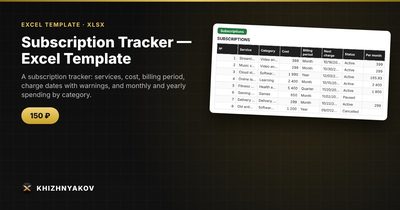
Subscription Tracker — Excel Template — Open the template →
A streaming service here, a cloud storage plan there, a fitness app you opened twice, a newspaper you forgot you had signed up for. Each charge is small, so none of them hurts. Together they can quietly cost hundreds of dollars a year, and the dates are scattered across bank statements and email receipts.
A subscription tracker is a short list in Excel with a few formulas. It takes about twenty minutes to set up, and most people find at least one or two subscriptions to cancel in the process. This guide shows how to build it, how to convert any billing period to a monthly cost, and how to get a warning before a charge lands.
Step 1: collect every subscription
Do not rely on memory. Go through three places:
- Your bank and credit card statements for the last three months. Look for repeating names.
- Your email inbox: search for "receipt", "renewal", "your subscription" and "invoice".
- The app store accounts on your phone and computer, which have a subscriptions page.
Do not forget annual charges. They are the ones that surprise people, because they show up once and look like a one-off purchase.
Step 2: set up the table
Create one row per subscription with these columns:
| Column | Example |
|---|---|
| Service | Video streaming |
| Category | Entertainment |
| Cost | $15.99 |
| Billing period | Month |
| Next charge date | 11/18/2026 |
| Status | Active |
Keep a fixed list of billing periods (month, quarter, half-year, year) and statuses (active, paused, cancelled) and use Data Validation so you cannot mistype them.
Convert everything to a monthly cost
This is the step that changes how you see your spending. Divide the cost by the number of months in the period:
- Month: cost / 1
- Quarter: cost / 3
- Half-year: cost / 6
- Year: cost / 12
In Excel, with the period in column D and cost in column C, use =C2/IF(D2="Month",1,IF(D2="Quarter",3,IF(D2="Half-year",6,12))). Multiply the result by 12 to get the yearly figure.
A worked example
| Service | Cost | Period | Per month |
|---|---|---|---|
| Video streaming | $15.99 | Month | $15.99 |
| Cloud storage | $29.99 | Year | $2.50 |
| Music | $10.99 | Month | $10.99 |
| Fitness app | $59.99 | Half-year | $10.00 |
| Newspaper | $39.00 | Quarter | $13.00 |
The total is about $52.48 per month, or $629.76 per year. The cloud storage plan looks tiny at $2.50 a month, while the fitness app, which you may barely use, quietly costs $120 per year. Seeing the same numbers on a single scale is what makes cancellation decisions easy.
Step 3: add a warning before the charge
Add a column "Days to charge" (G): =E2-TODAY(). Then a column "Alert": =IF(AND(F2="Active",G2>=0,G2<=7),"Soon",""), where F2 is the status and G2 is the days to charge. Colour "Soon" orange. Check the list on the first of each month and whenever you see an orange row.
A tracker can only warn about the date you entered, so update the next charge date after each renewal. A simple trick: =EDATE(E2,1) moves a monthly date forward by one month, =EDATE(E2,12) moves an annual date forward by a year.
Common mistakes
- Counting cancelled services. Use a Status column and sum only Active rows with
=SUMIF(Status,"Active",MonthlyCost). - Mixing currencies without noting them. If some services bill in euros or pounds, convert at a rough rate, or add a currency column.
- Forgetting free trials. Add the trial in the list with the date it converts to paid. That is the date to cancel.
- Not reviewing. Once every quarter, ask of each row: have I used this in the last month? If not, pause or cancel it.
- Ignoring shared plans. If you split a family plan with someone, enter only your share, or the totals will be wrong.
Ready-made template
The Subscription Tracker is a paid Excel template that sets all of this up for you. It has three sheets: "Settings" (report date, how many days ahead to warn, categories and billing periods), "Subscriptions" (up to 60 subscriptions with cost, period, next charge date and status of active, paused or cancelled) and "Summary" (spending per month and per year, upcoming charges, shares by category and a chart).
Billing periods supported are month, quarter, half-year and year, and the monthly cost is calculated automatically from the cost and the period. Only active subscriptions are counted. The workbook does not collect payments or send messages. It highlights the approaching date you entered. You get an empty template and a filled-in sample with fictitious data. It works in Excel 2007 and later and in LibreOffice, with no macros. It suits families, students, freelancers and small businesses with team tools.
FAQ
Is a spreadsheet better than a subscription app?
A spreadsheet needs no bank access and no account, so your financial data stays on your computer. The trade-off is that you enter dates yourself.
How do I treat a subscription I pay for with a work card?
Either leave it out or mark it with a category such as "Work" so you can filter it out of personal totals.
What if the price changes?
Overwrite the cost and note the change date in a comment. If you want to keep history, add a new row and mark the old one as cancelled.
How often should I review the list?
Monthly for a quick look at the orange rows, and quarterly for a real cancel-or-keep decision on each service.