KHIZHNYAKOV
How to Calculate Piecework Pay in Excel: Work Orders, Rates and Crew Split
Piecework Pay in Excel: Work Orders, Rates, Crews, LPC — Excel Template — Open the template →
Piecework pay is simple in principle: the worker is paid for what they produce, not for the hours they sit there. In practice, work orders pile up in a book, rates are looked up by hand, and splitting a crew's earnings turns into an argument about who worked harder. A tidy Excel workbook cuts out most of that.
This guide covers three things: how to price work orders from a rate list, how to split a crew's earnings using hours and a labour participation coefficient (LPC), and how to get from gross to net pay. It is useful for construction, installation, manufacturing and repair teams.
Step 1: Keep a rate list and a work order log
First, a small table of operations with their unit and rate:
| Operation | Unit | Rate |
|---|---|---|
| Install door frame | piece | $18.00 |
| Lay tile | sq m | $9.50 |
| Weld joint | joint | $3.20 |
Then a log with one row per work order: date, number, crew, operation and quantity. The rate and the amount should not be typed.
=VLOOKUP(D2,Rates!$A$2:$C$50,3,FALSE) gives the rate, and =E2*F2 gives the amount.
If a work order is typed with a misspelled operation, the lookup returns an error. That is useful: it tells you immediately that the order does not match an approved rate. Use a drop-down list to avoid it.
Add a "pay period" check so that only orders dated within the period are included:
=IF(AND(A2>=PeriodStart,A2<=PeriodEnd),1,0)
Step 2: Total the crew's earnings
For each crew:
=SUMIFS(Amount,Crew,"Crew 1",InPeriod,1)
Suppose Crew 1 completes work orders worth $2,400 during the month.
Step 3: Split by hours and LPC
Splitting purely by hours ignores skill and effort. The LPC (labour participation coefficient) is an agreed multiplier: for example 1.0 for a standard worker, 1.2 for a foreman or a more skilled worker, 0.8 for a trainee. Each worker's share is hours times LPC, divided by the total for the crew.
| Worker | Hours | LPC | Hours × LPC | Share | Earnings |
|---|---|---|---|---|---|
| Ana | 160 | 1.2 | 192 | 40% | $960 |
| Ben | 160 | 1.0 | 160 | 33.3% | $800 |
| Carlos | 128 | 1.0 | 128 | 26.7% | $640 |
The total of Hours × LPC is 480. Ana's share is 192 / 480 = 40%, so she earns 0.40 × $2,400 = $960.
In Excel:
=SUMPRODUCT(...), or simply a helper column =B2*C2 and then =D2/SUMIFS(D:D,Crew,crew_name) for the share, and =Share*CrewEarnings for the earnings.
For individual piecework, make a crew of one. All earnings go to that person and the LPC can be left blank or set to 1.
Step 4: Add supplements and tax
A regional coefficient or a bonus is usually a percentage of piecework earnings:
=Earnings*(1+Supplement)
Then tax is computed on gross pay at the rate that applies to you:
=Gross*TaxRate
and net pay is =Gross-Tax. Keep the supplement and the tax rate in settings cells, not in formulas. Tax rules differ and change, so check what applies to you.
Step 5: Control the totals
The most useful check in the workbook: the total of all work orders in the period should equal the total distributed on the payroll sheet (before supplements). A difference of even a few cents means a worker or a crew was missed or an LPC was left blank.
=IF(ABS(OrdersTotal-PayrollTotal)<0.01,"OK","Check")
Common mistakes
- Typing rates by hand. Use a lookup, so one approved rate list drives everything.
- Forgetting the pay period, which pulls last month's orders into this month.
- Changing an LPC after the fact without agreement. Agree the coefficients before the work starts.
- Splitting by hours alone when the crew agreed on LPC.
- No signatures. Keep a printed payroll sheet that workers sign.
Ready-made piecework pay workbook
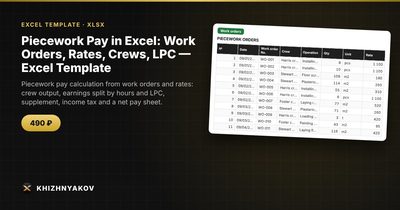
The Piecework Pay template does all this for you. A work order is entered as a row, the rate is filled in automatically, and the crew's earnings are split among workers by hours and LPC, with gross pay, income tax and net pay visible straight away.
It has four sheets. "Reference lists" holds the pay period, operation rates, crews, workers, the supplement and the income tax rate. "Work orders" takes up to 1,000 orders with date, number, crew, operation from the list and quantity; the rate, amount and "in period" flag are calculated automatically. "Payroll sheet" shows each worker's hours and LPC, share in the crew, earnings, supplement, income tax, net pay, output per hour and a signature column. "Summary" gives totals by crew and operation, a control check "work orders = payroll sheet" and two charts.
It suits accountants, work-rate setters, timekeepers, foremen and crew leaders where people are paid for output. It works in Excel 2007 and later and LibreOffice, with no macros. This is a paid template. The sample rates are fictional; use the rates and norms approved in your organization and check the tax rate and supplement against the rules that apply to you.
FAQ
Is LPC the same as a performance bonus?
Not quite. LPC changes how a crew's total is divided between members. A bonus is added on top of earnings. You can use both, but keep them separate in the sheet.
What if a worker joins the crew mid-month?
Count only the hours they actually worked in that crew. Their share is automatically smaller because hours are part of the formula.
Can the same worker be in two crews?
Yes, if you list them in each crew with the hours worked there. Check that their total hours make sense.
Where do the rates come from?
They should be approved in your organization. The workbook only applies them.