KHIZHNYAKOV
How to Track a Project Budget vs Actual in Excel
Project Budget Plan vs Actual — Excel Template — Download free →
Almost no project spends exactly what was planned. The real problem is not the variance itself but noticing it too late, when the money is already gone and there is no room to adjust.
A plan vs actual spreadsheet catches overruns early. In this guide you will set up plan and actual tables by month, calculate variance in dollars and percent, avoid the most common reporting trap, and forecast the total cost at completion.
Step 1. Two tables with the same shape
Create a Plan sheet and an Actual sheet with identical layouts: budget lines down the side, months across the top. Keep income lines (client payments, grants) separate from cost lines (contractors, materials, rent, software).
| Line | Jan | Feb | Mar | Apr | May | Jun |
|---|---|---|---|---|---|---|
| Contractors | 5,000 | 5,000 | 5,000 | 5,000 | 5,000 | 5,000 |
| Office rent | 2,000 | 2,000 | 2,000 | 2,000 | 2,000 | 2,000 |
| Equipment | 8,000 | 0 | 0 | 0 | 0 | 0 |
Type the line names once on the Plan sheet and reference them on the Actual sheet (=Plan!A2), so the rows can never drift apart.
Step 2. Variance by line and month
On a Variance sheet: =Actual!B2-Plan!B2. Percent variance: =IFERROR((Actual!B2-Plan!B2)/Plan!B2,"").
Read the sign carefully:
- For costs, a positive variance means overspending (bad).
- For income, a negative variance means a shortfall (bad).
Use conditional formatting with different rules for the two blocks, so red always means "problem."
Step 3. Compare to date, not to the whole project
This is the most common mistake in project reports. It is March, three months of actuals are in, and someone compares them with the full six-month plan. Every line looks like a huge saving, because half of the plan hasn't happened yet.
The fix is to compare actuals with the plan for the same months. If the last month with actuals is in cell B1 (as a number, e.g. 3), the plan to date for a line is:
=SUM(OFFSET(Plan!B2,0,0,1,$B$1))
Now the contractors line reads: plan to date $15,000, actual $18,000, variance +$3,000 (+20%). That is the number that should start a conversation.
Also show "plan used": actual to date / full plan. Here, $18,000 / $30,000 = 60% used at the halfway point.
Step 4. Set a tolerance
Not every dollar of variance deserves a meeting. Pick a tolerance, for example ±5%, and mark only lines outside it. A status column with =IF(ABS(var_pct)<=tolerance,"OK",IF(var>0,"Over","Under")) makes the report scannable.
Step 5. Forecast at completion
The key question for a project manager: if things continue like this, where will we end up? Two simple methods cover most cases.
Plan burn rate continues the current ratio of actual to plan:
Forecast = full plan × (actual to date / plan to date)
Contractors: $30,000 × (18,000 / 15,000) = $36,000. Good for lines where the overrun is likely to repeat, such as contractor hours.
Average actual per month continues the monthly average:
Forecast = actual to date + average monthly actual × remaining months
Rent: actual to date $6,300 over 3 months → average $2,100 → $6,300 + $2,100 × 3 = $12,600 versus a plan of $12,000. Good for regular lines.
Neither method knows about one-off events, so treat the forecast as a warning light, not a promise.
Step 6. Cumulative view and summary
Running totals show the trend better than single months. Add cumulative plan and cumulative actual for income, costs and the project result, and chart them as two lines. The gap between the lines is your budget story in one picture. A short "largest overruns" list (sort lines by variance, take the top 5) tells stakeholders where to look.
Common mistakes
- Comparing partial actuals with the full plan. It hides every overrun.
- Using one color rule for income and costs. Overspending and extra income should not both turn red.
- Editing line names in two places. Rows get out of sync and lookups break.
- Never updating the plan. If scope changes officially, update the plan and note the change; otherwise every report shows "variance" that is really a scope decision.
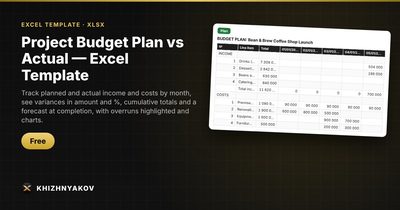
Ready-made template: Project Budget Plan vs Actual
The free Project Budget Plan vs Actual template is built around exactly these rules.
- "Settings": project name, first month, duration up to 24 months, variance tolerance and the forecast method ("Plan burn rate" or "Average actual per month").
- "Plan" and "Actual": up to 10 income lines and 20 cost lines by month; line names are entered only once.
- "Plan vs Actual": plan and actual to date, variance in amount and %, plan used, forecast at completion and a status for each line.
- "Variances": the difference by line and month with red and green highlighting.
- "Cumulative" and "Summary": running totals, the project result, the largest overruns and plan vs actual charts.
Months beyond the set duration turn grey and drop out of calculations. It works in Excel 2007 and later and in LibreOffice, without macros. Calculations are approximate.
FAQ
What is a normal variance tolerance?
Many teams use 5–10% per line and a tighter threshold for the project total. Small lines can swing a lot in percent with little money at stake, so look at both the dollar and percent variance.
Should I re-baseline the plan when things change?
Only for approved changes in scope or funding. Keep the original plan somewhere as a reference, so you can explain the difference between "the plan changed" and "we overspent."
How do I handle invoices that arrive late?
Record costs in the month the work was done if you can (accrual view), or note that the actuals are cash-based. Mixing the two is what makes month-to-month variance jump around.
Can I use this for a department budget instead of a project?
Yes. The method is the same: plan and actual with matching lines, variance to date and a year-end forecast.