KHIZHNYAKOV
Request Tracking Log in Excel: Priorities, Deadlines and Overdue Alerts
Request and Task Log — Excel Template — Open the template →
Requests arrive from everywhere: a chat message, a phone call, a sticky note on the door, an email forwarded with "see below". Within a week, nobody knows what is open, who is working on it, or which request has been waiting since Monday. The manager hears about problems from the person who is angry about them.
A request log fixes that. In Excel it takes one table, a priority list and a few formulas. This guide shows how to set up deadlines by priority, a traffic light for overdue requests, and the numbers a manager actually needs.
One request, one row
Every request gets its own row, however small. The columns:
| Column | Example |
|---|---|
| Registered | 11/02/2026 09:15 |
| Requester and department | S. Lee, Accounting |
| Subject | Printer offline |
| Priority | High |
| Assignee | Mark |
| Status | In progress |
| Closed | (filled when done) |
Registration needs a date and a time, not only a date. Deadlines in hours cannot work without time.
Deadlines from priorities
Agree on target times for each priority, and keep them in a small table:
| Priority | Target time |
|---|---|
| Critical | 4 hours |
| High | 8 hours |
| Normal | 24 hours |
| Low | 72 hours |
The target deadline is the registration time plus the target hours: =A2+VLOOKUP(priority,Priorities!A:B,2,FALSE)/24. Dividing by 24 turns hours into Excel's day-based time.
One point to decide early: are those calendar hours or working hours? Calendar hours are simple, and nights and weekends count. If you need working time, set longer targets. Simplicity wins in a first version.
The traffic light
Add a status column that compares the deadline with now (or with the closing time if the request is closed):
- Closed on time if closed and the closing time is on or before the deadline
- Closed late if closed after the deadline
- Overdue if open and now is past the deadline
- Due soon if open and the remaining time is below a threshold, say 4 hours
- OK otherwise
A formula: =IF(G2<>"",IF(G2<=D2,"On time","Late"),IF(NOW()>D2,"Overdue",IF(D2-NOW()<=4/24,"Due soon","OK"))). Colour overdue red, due soon yellow, others green. Every morning the manager filters red and yellow, and that is the day's priority list.
A worked example
A "High" request is registered at 11/02/2026 14:00. The target is 8 hours, so the deadline is 22:00 the same day. If Mark closes it at 19:30, resolution time is 5.5 hours and the mark is "On time". If it is closed at 23:15, the resolution time is 9.25 hours and it is "Late" by 1.25 hours. Resolution time is =(closed-registered)*24, and overdue time is =MAX(0,(closed-deadline)*24).
What the manager should look at
Three or four numbers cover most needs.
- Open requests by assignee.
=COUNTIFS(Assignee,name,Status,"<>Closed")shows who is overloaded. - Average resolution time, by priority. Mixing priorities hides problems.
- Share closed on time. On-time closed divided by all closed. If it is 60%, your target times or your capacity need a conversation.
- Requests by status and by department, which show where the demand comes from.
A basic bar chart for the assignee workload is enough.
Common mistakes
- Targets nobody believes. If every request is "Critical", nothing is. Define priorities with examples.
- Not recording the closing time. Without it, no statistics.
- Closing a request by deleting it. Keep the row and change the status.
- Free-text priorities and assignees. Use dropdowns.
- Measuring without discussing. A number on the sheet changes nothing until someone looks at it weekly with the team.
Ready-made template
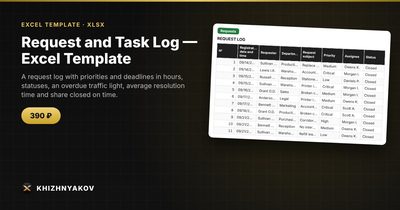
The Request and Task Log is a paid Excel template based on this model. It has three sheets: "Lists" (priorities with deadlines in hours, assignees, departments and the "due soon" setting), "Requests" (up to 1000 requests with registration, requester, department, subject, priority, assignee, status, closing, resolution time, overdue time and a traffic light) and "Summary" (requests by status, assignee and priority, average resolution time, share closed on time and two charts).
The target deadline is the registration date and time plus the priority time in hours, which you set yourself. The hours are calendar hours, so for working time you set longer times. "Due soon" means no more than the set number of hours remain, 4 by default, and you can change it. To close a request, choose the status "Closed" and enter the closing date and time. It suits managers and staff of technical support, facilities, IT departments, service and property management companies, and small teams that receive requests from employees or customers. It works in Excel 2007 and newer and in LibreOffice, with no macros. Adjust priority times and thresholds to your organization.
FAQ
Do I need a help desk system instead?
If you handle dozens of requests per day, with email integration and customer notifications, yes. For a small team a spreadsheet is faster to start and costs nothing to run.
How do I handle a request that is waiting for the requester?
Add a status like "Waiting" and decide whether the clock stops. In a simple log, many teams leave the clock running and add a note.
Who should enter the requests?
Ideally one person per shift, so the format stays consistent. Alternatively, everyone enters their own, with dropdowns to keep the data clean.
How long should I keep closed requests?
Keep at least a year for statistics, and then move them to an archive file.