KHIZHNYAKOV
Student Payment Tracker in Excel for Courses, Studios and Clubs
Student, Group and Payment Tracker — Excel Template for Courses, Studios and Clubs — Open the template →
Running a course, a dance studio or a kids' club means answering the same questions every week. Who has paid for this month? Who owes how much? How many classes did each student miss? When this lives in a notebook, debts get lost, and the awkward conversation with a parent happens three months late.
Excel handles this well for up to a few hundred students. This guide shows the structure, the formulas for amount due, debt and status, and how to make attendance visible without extra work.
The three tables
- Groups. One row per group: name, teacher, course price, number of sessions.
- Students. One row per student: name, group, discount, sessions attended.
- Payments. One row per payment: date, student, amount, method.
Do not store "paid" on the student row as a number you type. Payments belong in their own table, one row each. Then installments, partial payments and refunds are all just rows, and the total is always right.
The formulas
Assume the student's group price is looked up from the Groups table.
- Amount due:
=VLOOKUP(group,Groups!A:D,3,FALSE)*(1-discount)for a percentage discount. If your discount is a fixed amount, subtract it instead. - Paid:
=SUMIF(Payments!B:B,student,Payments!C:C) - Debt:
=due-paid. A negative number is an overpayment. - Status:
=IF(debt<=0,"Paid",IF(paid>0,"Partial","Not paid")) - Attendance:
=attended/sessions_in_course
A worked example
Group "English B1" costs $240 for 12 sessions.
| Student | Discount | Due | Paid | Debt | Status |
|---|---|---|---|---|---|
| Maria | 0% | $240 | $240 | $0 | Paid |
| Alex | 10% | $216 | $100 | $116 | Partial |
| Sam | 0% | $240 | $0 | $240 | Not paid |
Maria has paid in full. Alex got a 10% sibling discount, so the amount due is $216. He paid $100 in the first week and will pay the rest later, and the status stays Partial until his debt is zero. Sam has paid nothing. The total debt of the group is $356, and a filter on the status column gives you the list of people to remind.
Attendance that tells you something
Record how many sessions each student attended, and divide by the number of sessions held. Anything below 60% is worth a call. Why? A student who attends half of the classes usually stops coming entirely a few weeks later, and the debt becomes harder to collect when the student has left.
Put a red highlight in conditional formatting for attendance under your threshold, and the problem students pop out automatically. It is faster than reading a register.
A summary for the owner
For each group, you want five numbers: number of students, total charged, total paid, total debt and average attendance. In Excel:
- Students:
=COUNTIF(Students!B:B,group) - Charged:
=SUMIF(Students!B:B,group,Students!E:E) - Debt:
=SUMIF(Students!B:B,group,Students!G:G)
A list of the biggest debtors across all groups can be done by sorting the Students sheet by debt, descending.
Common mistakes
- Typing the payment on the student row. You then lose dates and cannot trace what was paid when.
- Discounts without a note. Next year you will not remember why a student paid 15% less.
- Free-text group names. "English B1" and "English b1" are different. Use a dropdown.
- Not saving a copy per term. Start a new file for each term and keep the old one as an archive.
- Collecting debts only at the end. Check the debtors list weekly, while the topic is still fresh.
Ready-made template
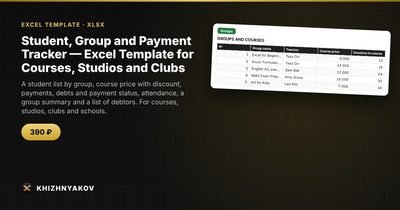
The Student, Group and Payment Tracker is a paid Excel template that implements this. It has five sheets: "Settings" (the name of the school or studio and the administrator), "Groups" (up to 8 groups with teacher, course price and number of sessions), "Students" (up to 150 people with group from a list, discount and attended sessions; amount due, paid, debt and status are calculated automatically), "Payments" (up to 500 payments with date, student, amount and method) and "Summary" (by group: number of people, amount charged, paid, debt and attendance; a list of debtors and a chart).
Installments work naturally, since each payment is its own row and the status stays Partial until the debt is cleared. An overpayment shows as a negative number. Attendance below 60% is highlighted in red. It suits administrators of language and training centers, dance and art schools, tutoring and children's studios, clubs and sports sections. It comes as a blank template and a filled-in sample with fictitious data. It works in Excel 2007 and later and in LibreOffice, with no macros. Calculations are approximate.
FAQ
Can I charge per session instead of per course?
Yes, in a spreadsheet you can set the course price as the per-session price times the number of sessions, then adjust when a student joins mid-course.
How do I handle a refund?
Enter it as a payment with a negative amount. The debt and status recalculate.
What should I do when a student changes group?
Change the group in the student row and adjust the discount or add a note about the credit already paid. Keep the payment history unchanged.
How do I share the debtors list with teachers?
Print or export only the debtors list, without the whole file, so that financial details stay with the administrator.