KHIZHNYAKOV
How to Make an Annual Department Work Plan and Progress Report in Excel
Department Annual Work Plan and Progress Report in Excel: Deadlines, % Completed, Traffic Light — Open the template →
An annual work plan is typically written once, approved, and then forgotten until the report is due. Then someone spends a weekend working out what was done, what slipped, and why the numbers do not add up. The fix is not more discipline. It is a plan in which status is calculated from dates, so the report is a by-product of the plan.
Below is a method you can set up in an hour in a blank Excel workbook: structure, formulas, a worked example and the mistakes that most often spoil the report.
Step 1: Structure the plan as a flat table
One row per activity, no merged cells, no blank rows. Merged cells look tidy and break sorting, filtering and every formula that follows.
| Column | Purpose |
|---|---|
| Section | Group of activities, such as Training or Reporting |
| Activity | What exactly will be done |
| Responsible | One named person |
| Deadline | A real date, not "Q2" |
| Completion date | Filled in when finished |
| % complete | For long activities in progress |
| Quarter | Calculated |
| Status | Calculated |
| Days overdue | Calculated |
Always use one responsible person per row. "The team" means nobody.
Step 2: Calculate quarter, status and days overdue
Quarter from a deadline in column D:
=ROUNDUP(MONTH(D2)/3,0)
Status, with completion date in E, percent in F and a "due soon" window of 14 days:
=IF(OR(E2<>"",F2=1),IF(E2>D2,"Completed late","Completed"),IF(D2<TODAY(),"Overdue",IF(D2-TODAY()<=14,"Due soon",IF(F2>0,"In progress","Not started"))))
Days overdue:
=IF(AND(E2="",D2<TODAY()),TODAY()-D2,0)
Add conditional formatting so overdue rows are red. A glance at the sheet then tells you what needs attention this week.
Step 3: Decide how to measure % completed
There are two honest ways, and you should pick one and state it in the report:
- Count-based. Share of activities with a completion date. Simple and hard to argue with.
- Average of percentages. Each activity counts as 100% if finished, otherwise its entered percent. The overall figure is the average across activities.
Example: five activities, two finished, one at 50%, two not started. Count-based gives 40%. The average method gives (100+100+50+0+0)/5 = 50%.
Use =AVERAGE(G2:G6) on a helper column where G is =IF(E2<>"",1,F2). For per-quarter or per-person figures, use AVERAGEIFS. Keep the same method for the whole year, or the quarterly comparison means nothing.
Step 4: Build the summary and the report
Two blocks are enough for most managers:
- Progress by quarter and by responsible person, using
COUNTIFSandAVERAGEIFS. - A list of overdue activities. In current Excel you can filter with the Filter feature on the Status column; in older versions use AutoFilter.
For the report by section, show planned activities, completed ones and the average percent. Add a short comment column for the reasons behind delays. Managers read the comments before they read the numbers.
Common mistakes
- Deadlines written as periods. "Q2" cannot be tested against today's date. Use the last day of the period.
- Changing deadlines silently. If a date moves, keep the original in a separate column so the report can show slippage honestly.
- Too many activities. Past 150 or so, nobody reads the plan. Merge small tasks into one activity with a percent.
- Status typed by hand. It will be wrong by the time anyone reads it.
- No owner for the file. One person updates it monthly, others only send information.
Ready-made annual work plan and report
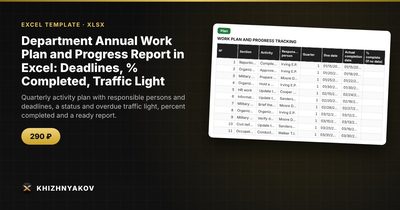
The Department Annual Work Plan and Progress Report template is the same idea, already built. Status of each activity is calculated from the deadline and the completion date, overdue and due-soon items are visible, and the report by section is ready to show to a manager.
It contains four sheets. "Lists" holds the organization, year, "due soon" threshold, plan sections and responsible persons (up to 8 sections and 10 responsible persons, chosen from drop-down lists). "Plan" takes up to 500 activities, with the quarter, status and days overdue worked out automatically. "Summary" gives totals, progress by quarter and by responsible person, statuses and two charts. "Report" shows progress by section, a list of overdue activities and signature lines.
It is meant for managers and specialists in departments, services and institutions, in public bodies and companies alike. It works in Excel 2007 and later and in LibreOffice, with no macros. It is a paid template. It is a working tool, so check wording, column names and approval procedure against your own organization's rules.
FAQ
What if an activity has no fixed deadline?
Give it a target date anyway, even a soft one. If the work is truly ongoing, such as monthly monitoring, split it into twelve dated rows or one row per quarter.
How often should the plan be updated?
Monthly is realistic. Weekly updates tend to be abandoned. Block thirty minutes before the monthly meeting and update only status inputs: completion dates and percents.
Should I include activities that were added mid-year?
Yes, and mark them, for example with a "Added" column. The report then distinguishes between what was planned in January and what the department took on later.
Can the same file serve as the plan and the report?
That is the point. When status is calculated from dates, the report is a view of the plan. You print the summary and report sections instead of writing a separate document.