KHIZHNYAKOV
How to Make a Teacher's Grade Book in Excel with Averages and Attendance
Teacher's Class Grade Book — Excel Template — Open the template →
Working out averages and term grades by hand takes time, and rounding questions always come back at the end of term: why did one student get a 4 with an average of 3.5? A personal grade book in Excel removes the arithmetic and makes the rounding rule explicit, so it can be explained once and applied to everyone.
Here is how to set it up from scratch, with the formulas you need for averages, counts, attendance and a suggested grade. It assumes grades from 2 to 5, with "A" marking an absence; adapt the scale to your own system.
Step 1: Build the student-by-date matrix
Put students down column A and lesson dates across row 1. Each cell holds a grade, the letter A for absent, or nothing.
| Student | 09/04 | 09/11 | 09/18 | 09/25 |
|---|---|---|---|---|
| Alvarez, J. | 5 | 4 | A | 5 |
| Brooks, T. | 3 | 4 | 4 | |
| Chu, M. | A | A | 3 | 2 |
Use Data Validation with a list (2, 3, 4, 5, A) in the grade area. It stops "4,5" or "four" from sneaking in. Add conditional formatting for colours: green for 5, light green for 4, yellow for 3, red for 2, grey for A. A coloured sheet is much quicker to read than a grid of digits.
Step 2: Calculate the average and the counts
AVERAGE ignores text and blanks, so the letter A does not affect the average. For a student in row 2 with grades in B2:AO2:
=IFERROR(AVERAGE(B2:AO2),"")
Counts of each grade:
=COUNTIF(B2:AO2,5) and likewise for 4, 3 and 2.
Absences:
=COUNTIF(B2:AO2,"A")
For the first student above: grades 5, 4, 5 give an average of 4.67, with two 5s, one 4 and one absence.
Step 3: Pick a rounding rule and write it down
This is where most disputes begin. Mathematical rounding takes 3.5 up to 4. A stricter policy might need 3.6. Use a threshold cell, say T = 0.6, and calculate:
=IF(avg="","",INT(avg)+IF(avg-INT(avg)>=T,1,0))
With T = 0.5, an average of 3.5 becomes 4. With T = 0.6, it stays 3, while 3.6 becomes 4. Keeping the threshold in a cell means you can show a parent exactly how the grade was reached. Treat the result as a suggestion; the final grade is still your professional decision.
Step 4: Add attendance and class-level figures
Attendance percentage for a student:
=1-absences/(number of lesson dates held)
Highlight everyone below a threshold, for example 80%. For the class:
- Average grade:
=AVERAGE(range of student averages) - Pass rate: share of students whose suggested grade is 3 or higher:
=COUNTIF(grades,">=3")/COUNT(grades) - Knowledge quality: share with 4 or 5, a common measure in many school systems:
=COUNTIF(grades,">=4")/COUNT(grades)
Check how your school defines these measures before reporting them, since definitions vary.
Common mistakes
- Entering absence as 0. That drags the average down. Use a letter and let AVERAGE skip it.
- Typing averages instead of calculating them. One late grade and everything is wrong.
- One sheet for all subjects. Keep one file per subject per class, or the structure becomes unmanageable.
- No term boundaries. Store the term start and end dates and calculate term averages with AVERAGEIFS on the date row.
- Hiding the rounding rule. Write it in a visible note on the sheet.
Ready-made teacher's grade book
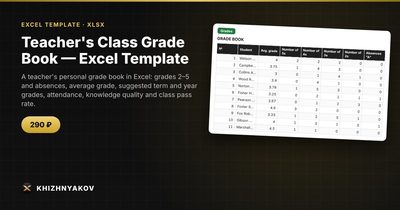
The Teacher's Class Grade Book template implements this whole method. You enter grades in a student by lesson date matrix, and the spreadsheet calculates the average grade, the number of 5s, 4s, 3s and 2s and the absences, and suggests a grade for the term and for the year. You set the rounding rule as a parameter.
It has five sheets. "Class" holds the class name, subject, teacher, term start dates and end of year, a list of up to 35 students, up to 40 lesson dates and the rounding and attendance threshold settings. "Grades" is the matrix, with grades 2 to 5 and "A" from a drop-down list, colour highlighting and the suggested grade for the selected period. "Results" shows average and suggested grade for each of the four terms and the year, with categories "top student", "good student", "has 3s" and "failing". "Attendance" gives absences by term and the attendance percentage, highlighting students below the threshold. "Summary" shows the class average, knowledge quality, pass rate, attendance, a table by term and two charts.
It suits subject teachers, class tutors, clubs and tutors with a group, and anyone who keeps personal records next to the official register. It runs in Excel 2007 and later and LibreOffice, with no macros. This is a paid template; the spreadsheet only suggests grades, so check thresholds against your local rules.
FAQ
What if I have more than 40 lesson dates?
Enter only the dates on which you gave grades or recorded absences, or keep a separate file for each half-year.
Can one file cover several subjects?
It works best as one subject for one class. For another subject, save a copy, change the subject and enter new grades.
Should I use weighted grades for tests?
You can, but it complicates the sheet and the explanation. If your school uses weights, add a weight row above the dates and calculate with SUMPRODUCT divided by the sum of weights for the cells that have grades.
Is this a replacement for the official register?
No. It is a personal tool for quick averages and summaries. Official records follow your school's own rules.