KHIZHNYAKOV
How to Keep a Payment Request Register with Approval in Excel
Payment Register and Payment Requests with Approval — Excel Template — Open the template →
When payment requests arrive from several departments by email, chat and paper, three things go wrong sooner or later: an urgent invoice is paid late, an invoice is paid twice, or a budget category quietly goes over its limit. A simple register in Excel prevents all three, and you do not need accounting software to do it.
This guide shows how to build one: the columns that matter, the statuses, formulas for overdue flags and limits, and a worked example in dollars.
Step 1: One request, one row
Create a table where each request is a single row. These columns are enough for most small organizations:
| Column | Notes |
|---|---|
| Request No. | Unique, never reused |
| Department | From a drop-down list |
| Counterparty | Supplier or contractor |
| Basis | Invoice or contract number |
| Category | From a drop-down list, tied to a budget |
| Amount | In one currency |
| Due date | The date payment must be made by |
| Approver | A named person |
| Status | New, Pending approval, Approved, Rejected, Paid, Postponed |
| Payment date | Filled when paid |
| Payment slip number | For matching to the bank statement |
| Priority | High, Normal, Low |
Fixing the statuses to a short list with Data Validation matters more than it sounds. Free text statuses make every filter unreliable.
Step 2: Flag overdue and urgent requests
With due date in G, status in J and payment date in K, a traffic-light column can be:
=IF(J2="Paid","Paid",IF(J2="Rejected","-",IF(G2<TODAY(),"Overdue",IF(G2-TODAY()<=3,"Due soon","OK"))))
Apply conditional formatting to colour "Overdue" red and "Due soon" amber. Sort by due date once a day and you will see what matters.
To catch duplicates, add a check column. If the same counterparty, basis and amount appear twice:
=IF(COUNTIFS(C:C,C2,D:D,D2,F:F,F2)>1,"Check duplicate","")
This single formula prevents most double payments.
Step 3: Control budget limits by category
Set a monthly limit for each category on a second sheet. Then compute spending with SUMIFS. Suppose Office supplies has a limit of $2,000 per month. For requests that are approved or paid, due in March:
=SUMIFS(Amount,Category,"Office supplies",Status,"Approved",DueDate,">="&DATE(2026,3,1),DueDate,"<"&DATE(2026,4,1))
Add the same formula for "Paid" and sum them, or use SUMPRODUCT. Then:
=Limit-Spent
Example:
| Category | Monthly limit | Paid | Approved, unpaid | Remaining |
|---|---|---|---|---|
| Office supplies | $2,000 | $1,150 | $600 | $250 |
| IT services | $5,000 | $3,200 | $2,400 | -$600 |
IT services is over by $600. A red negative number in the remaining column is the signal to hold the next request until someone decides.
Step 4: Make a short payment calendar
A payment calendar answers the question "what do we have to pay this week?" List the next 14 days in a column and sum approved amounts by due date:
=SUMIFS(Amount,DueDate,A2,Status,"Approved")
Put the total of overdue approved requests above it. Finance managers tend to look at this first thing every morning.
Common mistakes
- Changing a request's amount without a note. Keep revisions in a comment column or create a new row.
- Mixing request date and due date. Sort and alert by due date only.
- Several approvers with no order. Decide who approves what and how much, and write it in the header.
- Statuses that skip steps. Do not mark a request Paid until you have a payment slip number.
- One giant file for ten years. Archive each year and keep open items in the new file.
Ready-made payment register
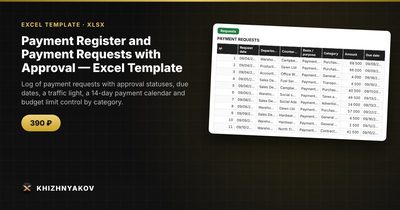
The Payment Register and Payment Requests template has all of this set up. Each request is one row, and the spreadsheet shows overdue payments, builds a calendar and calculates the remaining limit per category.
It has four sheets. "Lists" holds expense categories with monthly limits, departments and approvers. "Requests" takes up to 1200 requests with department, counterparty, basis, category, amount, due date, approver, status, payment date, payment slip number, priority and a traffic light. "Payment calendar" shows what to pay on each of the next 14 days and what is overdue. "Summary" gives totals by status, limits and spending by category for the month, and charts.
It suits accountants, finance managers, executives who approve payments, and small organizations or sole traders collecting requests from several departments. The package contains a blank spreadsheet and a filled-in sample with fictional data. It runs in Excel 2007 and later and LibreOffice, with no macros. This is a paid template. It is a spreadsheet built on ordinary formulas, not accounting software, and thresholds and values should be checked against your local rules.
FAQ
Do I need approval levels based on amount?
If requests vary widely in size, yes. A common pattern is that anything under a set amount needs one approver and larger amounts need two. Write the rule down and add an Approver column so the register shows who signed off.
How do I handle partial payments?
Split the request into two rows with the same basis: one for the amount paid and one for the remainder, each with its own status. Do not edit the original amount.
What should I do with postponed requests?
Keep them in the table with the status Postponed and a new due date. Never delete rows; deleted rows are how double payments happen.
Should the register replace the bank statement check?
No. The register shows what should be paid. Match the payment slip numbers to the bank statement at least weekly.