KHIZHNYAKOV
How to Make a Class Timetable in Excel and Calculate Teacher Workload
Class Timetable and Teacher Workload — Excel Template — Open the template →
Many schools, colleges and training centers build their timetable in a grid of merged cells. It looks right, but it cannot tell you that the same teacher is in two rooms at 10:00. The clash gets found on Monday morning, in front of thirty students.
The more reliable way is to keep the timetable as a list, one row per class, and let formulas check it. The grid is then just a view. This guide shows how, including the formulas for clash detection and teacher workload.
Step 1: Keep a list, not a grid
Create a table with one row per class:
| Day | Slot | Group | Subject | Teacher | Room |
|---|---|---|---|---|---|
| Mon | 2 | 9A | Chemistry | Okafor | Lab 1 |
| Mon | 2 | 9B | Chemistry | Okafor | Lab 2 |
| Mon | 3 | 9A | History | Chen | 204 |
Use separate small lists for teachers, groups, rooms and subjects, and attach drop-downs through Data Validation. Typing "Okafor" in one row and "Okafor " with a trailing space in another will defeat every check below.
Define slots as numbers (1, 2, 3...) with start and end times in a small table on another sheet. A lesson is then "Monday, slot 2", which is easy to compare.
Step 2: Detect clashes with COUNTIFS
A clash means the same day and slot appears twice for one teacher, one room or one group. Assuming Day in A, Slot in B, Group in C, Teacher in E, Room in F:
Teacher: =COUNTIFS($A:$A,A2,$B:$B,B2,$E:$E,E2)
Room: =COUNTIFS($A:$A,A2,$B:$B,B2,$F:$F,F2)
Group: =COUNTIFS($A:$A,A2,$B:$B,B2,$C:$C,C2)
Combine them into one check column:
=IF(COUNTIFS($A:$A,A2,$B:$B,B2,$E:$E,E2)>1,"Teacher busy",IF(COUNTIFS($A:$A,A2,$B:$B,B2,$F:$F,F2)>1,"Room busy",IF(COUNTIFS($A:$A,A2,$B:$B,B2,$C:$C,C2)>1,"Group busy","OK")))
Add conditional formatting that turns the row red when the check is not "OK". Now every edit is tested instantly.
Step 3: Count teacher workload
Workload is the number of classes multiplied by the hours per class. If a lesson is two academic hours, and a teacher has 14 classes a week:
=COUNTIFS(Teacher,"Okafor")*2
That gives 28 hours. Compare with the teacher's weekly quota:
=Hours/Quota
| Teacher | Quota (h/week) | Hours | Load |
|---|---|---|---|
| Okafor | 24 | 28 | 117% |
| Chen | 18 | 14 | 78% |
Anything above 100% is overload, and a low percentage is underload. Put the threshold for underload in a settings cell instead of hard-coding it.
Step 4: Produce a printable grid
Teachers and students want the grid. Build it on a separate sheet with days as columns and slots as rows, plus a cell where you choose a group or a teacher. A cell formula pulls the subject:
=IFERROR(INDEX(Subject,MATCH(1,(Day=B$1)*(Slot=$A2)*(Group=$B$20),0)),"")
In older Excel versions, array formulas need Ctrl+Shift+Enter. If that feels fragile, add a helper column to the list that joins day, slot and group into a key, then use a plain INDEX/MATCH on the key.
Common mistakes
- Treating the grid as the source of truth. Edit the list; regenerate the grid.
- Forgetting that rooms clash too. Teachers are noticed; double-booked labs are discovered at the door.
- Mixed hour definitions. Decide whether a class is 45, 60 or 90 minutes and how many academic hours it counts as.
- Hard-coded quotas in formulas. Quotas change each year. Keep them on a list.
- No holiday or one-off handling. Keep the base timetable clean and record exceptions separately.
Ready-made timetable and workload template
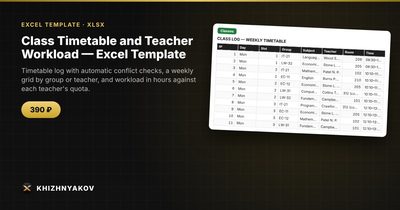
The Class Timetable and Teacher Workload template does all of the above out of the box. Each class is entered as a row from drop-down lists, the file instantly shows that a teacher, room or group is busy, builds a weekly grid and calculates each teacher's hours against their quota.
There are four sheets. "Lists" holds teachers with a weekly quota in hours, groups, rooms, subjects, class times (slots) and workload settings. "Classes" takes up to 800 classes with day, slot, group, subject, teacher and room, plus time, hours and a conflict check with highlighting and a text message. "Grid" is a weekly grid for a chosen group or teacher, ready to print. "Workload" shows weekly hours against quota, load percentage, overload, classes by day and two charts.
It suits heads of studies, academic coordinators, administrators of language schools, studios and clubs, tutoring centers and anyone who builds a timetable by hand. The package includes a blank spreadsheet and a filled-in sample with fictional data. It runs in Excel 2007 and later and LibreOffice, with no macros. This is a paid template, and the thresholds and quotas should be checked against your own policies.
FAQ
How do I handle a class that two groups attend together?
Enter one row per group with the same teacher and room. A plain clash check will flag it, so decide on a rule such as a "Joint" subject label that you ignore when reading the warnings, or leave the flag as a reminder to confirm.
Can I plan for several weeks with different schedules?
Add a "Week" column (for example A and B) and include it in your clash formula. Then the same day and slot can legitimately have different content in different weeks.
How many classes can one timetable hold?
Excel handles far more than any timetable needs. The practical limit is readability: past a few hundred rows, use filters by group or teacher.
What is the quickest way to check the whole timetable?
Filter the check column for anything other than "OK". If the filter returns nothing, the timetable is clash-free for teachers, rooms and groups.