KHIZHNYAKOV
How to Calculate Employee Length of Service in Excel
Length of Service and Tenure Calculator in Excel — Excel Template — Open the template →
Adding up periods of service on a calculator is a classic source of errors. Months have different lengths, an employee may have three separate spells of work, and some periods may count with a higher coefficient. Then comes the real question: when does this person move to the next tier of the long-service allowance?
This guide shows a method that works in any spreadsheet: record each period as a row, convert to credited days, sum per employee, convert back to years, months and days, and look up the allowance from a scale. Use your own rules for coefficients and thresholds; the numbers below are examples only.
Step 1: One row per period
Create a table with these columns: employee, start date, end date, period type, credited days. The type column points to a small settings table where each type has a coefficient: 1 for ordinary calendar service, and values such as 1.5 or 2 for periods that your own rules count at a higher rate.
Count both the start and end dates as service days. That is the "inclusive" convention:
=End-Start+1
Credited days are then =(End-Start+1)*Coefficient.
Step 2: Choose a simple conversion rule
Real calendars make years and months awkward, so many offices adopt a simple convention: one month equals 30 days and one year equals 360 days. Whatever you pick, write it in the file, apply it to everybody and keep it constant.
Add up credited days per employee with SUMIFS, then convert:
- Years:
=INT(TotalDays/360) - Months:
=INT(MOD(TotalDays,360)/30) - Days:
=MOD(MOD(TotalDays,360),30)
A small tip: avoid DATEDIF if you share files between Excel and LibreOffice. It is undocumented in Excel and behaves differently elsewhere. Plain arithmetic like the above works everywhere.
A worked example
An employee has three periods:
| Period | Dates | Type | Coefficient | Credited days |
|---|---|---|---|---|
| 1 | 1 Sep 2015 to 30 Jun 2018 | Standard | 1 | 1,034 |
| 2 | 1 Feb 2019 to 31 Jan 2021 | Standard | 1 | 731 |
| 3 | 1 Mar 2021 to 31 Aug 2021 | Special | 1.5 | 184 x 1.5 = 276 |
Total credited days = 1,034 + 731 + 276 = 2,041. Divided by 360: 5 years (1,800 days), remainder 241 days, which is 8 months and 1 day. So the tenure is 5 years, 8 months, 1 day.
Step 3: Look up the allowance percentage
Create a scale with thresholds in years and the matching percentage:
| From (years) | Allowance |
|---|---|
| 0 | 0% |
| 1 | 10% |
| 5 | 20% |
| 10 | 30% |
Use VLOOKUP(TenureYears, Scale, 2, TRUE) with approximate match. For the employee above (5 full years), the result is 20%. These percentages are a sample; enter the ones that apply to you.
Step 4: Find the next threshold date
The next threshold is the first tier above current tenure. Days missing = threshold x 360 - total credited days. If the employee is still working at a coefficient of 1, the date is today plus the missing days. The traffic light then compares that number of days with your "soon" and "urgent" windows, for instance 90 and 30 days.
Common mistakes
- Forgetting that end dates are inclusive. You lose a day per period.
- Overlapping periods. Add a check that no start date falls inside another period of the same employee.
- Mixing conversion rules. One person on 365-day years and another on 360 produces unfair differences.
- Start after end. A simple
IFcheck on every row catches typos. - Using a coefficient without a source. Keep a note on where each special coefficient comes from.
Ready-made template: length of service and tenure calculator
The Length of Service and Tenure Calculator is a paid Excel template that puts this method in place.
- Settings: the calculation date, period types with a credit coefficient (1 for calendar, 1.5 or 2 for preferential under your own rules), the allowance scale with thresholds in years and percentages, and the "soon" and "urgent" windows.
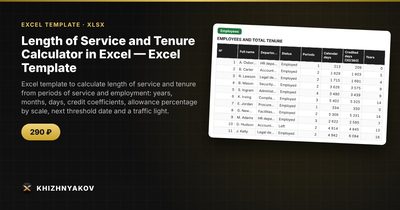
- Employees: up to 200 people with total tenure in years, months and days, allowance percentage, next threshold, the date it is reached, time remaining and a traffic light.
- Periods: up to 2,000 periods with employee, start, end, type, credited days and a date check.
- Summary: the number of employed staff on each tier of the scale, a "who reaches a threshold soon" list and two charts.
Tenure is calculated by the rule "month = 30 days, year = 360 days", without DATEDIF, so the file behaves the same in Excel 2007 and later and LibreOffice. No macros. The coefficients, thresholds and percentages are a sample and not taken from any law: enter your own values and check them against your own rules.
FAQ
Do I count the first day of employment?
Under the inclusive convention, yes. Whatever you decide, apply it to all periods and document it.
How do I deal with a gap between two jobs?
Enter each job as a separate period. The gap simply is not counted, so no special handling is needed.
Can the same method work for service in months only?
Yes. Divide total credited days by 30 for months. You can leave years out of the display if your scale is monthly.
What if an employee is still working?
Use the calculation date as the end of the open period. A formula such as =IF(End="",CalcDate,End) keeps it current.