 KHIZHNYAKOV
Car Maintenance Log in Excel: Service Schedule, Overdue Alerts and Costs
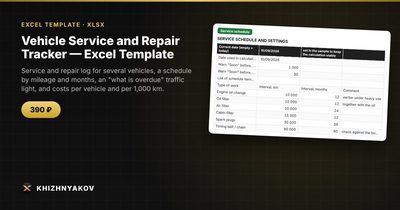
Vehicle Service and Repair Tracker — Excel Template — Open the template →
A skipped oil change or a timing belt that goes past its interval can turn a 100 USD job into a four-figure repair. The usual cause is not carelessness but scattered information: stamps in a booklet, receipts in a glove box, and a vague memory of when the brakes were last checked.
A maintenance log in Excel solves this with very little effort. Every job goes into one table, a schedule defines how often each item needs attention, and a few formulas tell you what is due, what is soon, and what is overdue. This article shows the method step by step.
Step 1: Define the service schedule
List the items you want to monitor and give each one an interval. Take the intervals from your vehicle's service booklet or manual, not from guesswork.
| Item | Interval (km) | Interval (months) |
|---|---|---|
| Engine oil and filter | 10,000 | 12 |
| Air filter | 20,000 | 24 |
| Brake pads | 40,000 | |
| Brake fluid | 24 | |
| Timing belt | 90,000 | 60 |
Leave a column empty if an interval applies only by distance or only by time. The first-come rule handles the rest: whichever limit arrives first decides the status.
Step 2: Keep a clean log
Create one row per job: date, odometer reading, item or type of work, category, parts cost, labor cost, workshop. Keep parts and labor in separate columns, because later you will want to know what you spend on each.
Add a mileage check: the odometer should never be lower than the previous record for the same vehicle. A simple IF flags typing errors, such as a missing digit.
Step 3: Calculate the next service
For each item, find the last log record. In modern Excel you can use MAXIFS; in older versions an array formula with MAX(IF(...)) works.
- Next service by mileage = mileage at last replacement + interval in km
- Next service by date = replacement date + interval in months (
EDATE) - Remaining km = next mileage - current mileage
- Remaining days = next date - TODAY()
The status is a nested IF: red if either remaining value is zero or below, yellow if either is under your warning threshold (for example 1,000 km or 30 days), green otherwise.
A worked example
You changed the oil at 62,000 km on 10 March. The interval is 10,000 km or 12 months. Today the odometer shows 70,500 km.
- Next by mileage: 72,000 km, so 1,500 km remain.
- Next by date: 10 March next year.
- With a warning threshold of 1,000 km, the status is still green, but at 71,000 km it turns yellow.
Current mileage is best defined as the highest of three values: the figure at the start of tracking, a manually entered reading and the highest mileage in the log. That way an old log entry can never move the odometer backwards.
Step 4: Watch the costs
Add up parts and labor by vehicle, by category and by month with SUMIFS. A very useful number is cost per 1,000 km: total spend divided by kilometers driven, multiplied by 1,000. If you drive 15,000 km in a year and spend 900 USD on servicing, that is 60 USD per 1,000 km. Compare cars or years on this figure rather than on raw totals.
Common mistakes
- Copying intervals from the internet instead of your own manual.
- Logging only big jobs. Small items such as wipers and fluids add up.
- Forgetting the time limit. A car that rarely moves still ages.
- Not updating current mileage. The traffic light is only as fresh as the odometer figure.
Ready-made template: vehicle service and repair tracker
The Vehicle Service and Repair Tracker is a paid template built around this approach.
- Vehicles: up to 20 vehicles with license plate, make, year, mileage at the start of tracking and current mileage.
- Service schedule: up to 20 items such as oil, filters, spark plugs, timing belt, brake pads and fluids, with an interval in kilometers and/or months and warning settings.
- Log: up to 500 records with date, mileage, type of work, category, parts and labor separately, workshop and a mileage check.
- Service plan and Traffic light: next replacement by mileage and by date, remaining km and days, and a status for every item of every vehicle (red is overdue, yellow is soon, green is OK).
- Costs: by vehicle, for 12 months, by category, by type of work and by month, cost per 1,000 km and a chart.
It suits private owners, small fleets and drivers using their own cars. It works in Excel 2007 and later and LibreOffice, with no macros. The intervals shown are examples: replace them with the ones from your service booklet. The calculation is approximate and does not replace the manufacturer's recommendations. The package includes a blank file and a filled-in sample with fictional data.
FAQ
How often should I update the log?
After every job, and update the current mileage whenever you check the odometer, for example when you refuel.
Can I track more than one car in one file?
Yes. Add a vehicle column to the log and to your lookups, so each item is calculated per vehicle.
What if I buy a used car with no service history?
Set the start of tracking at the current odometer reading and treat the main items as due at once, or have a workshop inspect them. Then record every job from that point.
Is cost per 1,000 km better than cost per year?
It is fairer when mileage varies. A car that sat idle for months can look cheap per year but expensive per kilometer.