KHIZHNYAKOV
How to Build an Employee Training Tracker in Excel
Employee Training and Certification Tracker — Excel Template — Open the template →
Mandatory training has a nasty habit of expiring quietly. Certificates sit in personal files, the course dates live in someone's calendar, and the first sign of trouble is an inspector asking for proof. By then the only option is to apologize.
A training tracker in Excel gives you the opposite: a warning months ahead. This guide shows how to structure the data, calculate expiry dates and statuses, and build the summaries that managers actually use.
Three tables are enough
- Courses. Name and validity in months. Example: fire safety, 12; first aid, 24; forklift certification, 36. A validity of 0 means the training never expires.
- Employees. Name, department, position.
- Training records. Employee, course, completion date, document or certificate number, and optional override of the term.
Keep the course list as a separate table with data validation in the record sheet, so nobody types "Fire safety" in five different spellings.
Step 1: Calculate the expiry date
=IF(Term=0,"",EDATE(CompletionDate,Term))
EDATE adds whole months and handles month ends correctly. Let the record's own term override the course default when a particular certificate has a different validity.
Step 2: Calculate days left and status
- Days left:
=Expiry-TODAY() - Status:
=IF(Expiry="","No expiry",IF(DaysLeft<0,"Overdue",IF(DaysLeft<=Warning,"Expiring","Valid")))
Use a warning window of about 60 days. That is long enough to book a course and short enough to avoid constant noise. Add conditional formatting: green for valid, yellow for expiring, red for overdue.
Step 3: Handle retakes
When someone repeats a course, you now have two records for the same person and course. The old one will look overdue forever unless you deal with it. Mark an older record as "Superseded" whenever a newer record for the same employee and course exists:
=IF(COUNTIFS(Employee,A2,Course,B2,Date,">"&C2)>0,"Superseded",...)
Superseded rows are excluded from overdue counts, which removes false alarms.
A worked example
Course: electrical safety, validity 12 months. Maria completed it on 14 March 2025.
- Expiry: 14 March 2026
- Warning window: 60 days, so the status turns yellow from 13 January 2026
- If today is 20 March 2026 and she has not retaken it, the status is red with minus 6 days left
If she retakes it on 2 February 2026, the March 2025 record becomes Superseded and the new one is valid until 2 February 2027.
Step 4: Summaries for managers
- Count of each status by department using
COUNTIFS - Share in good standing: valid divided by total relevant records
- A twelve-month outlook: how many certificates expire in each of the next twelve months. This helps you book trainers and budget course fees in advance.
Common mistakes
- Typing expiry dates by hand. Calculate them; manual dates drift.
- Free-text course names. Use a list.
- Keeping only the latest status. Keep history, and let formulas ignore superseded records.
- No owner for the file. Assign one person who reviews the red and yellow rows every week.
- Copying validity periods from another organization. Terms depend on your industry and your own documents.
Ready-made template: employee training and certification tracker
The Employee Training and Certification Tracker is a paid template that already does all of this.
- Settings: list of departments and courses with their validity period, number of days for the warning and the current date.
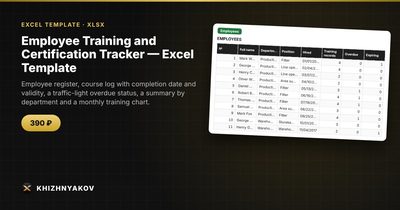
- Employees: up to 200 people with department, position, number of records, overdue items and the nearest expiry for each person.
- Training: up to 1000 records with employee, course, date, document, term, expiry date, days left and a traffic-light status.
- Summary: statuses by department and course, share in good standing and a chart.
- Chart: how many trainings expire in each of the next 12 months, with a cumulative total.
The package contains a blank spreadsheet and a filled-in sample with fictional data. It works in Excel 2007 and later and LibreOffice, with no macros, and updates are free. The course terms in the list are examples: check them against the requirements of your industry and internal documents, because the file calculates with whatever you enter. The calculation is approximate.
FAQ
How many days before expiry should the warning start?
Sixty days is a good default. Use more for courses that need a trainer to be booked far ahead.
Can I track internal and external training in the same file?
Yes. Treat them as separate courses in the list, or add a column for the provider and filter on it.
What about people who leave?
Keep their records but remove them from active lists, or add a status column, so summaries reflect current staff only.
Do I need to store scans of certificates?
Not in the spreadsheet. Save the scans in a folder and record the certificate number in the sheet so you can find them fast.