KHIZHNYAKOV
Gradebook and Attendance Tracker in Excel for Teachers
Gradebook and Attendance Tracker — Excel Template — Open the template →
A paper gradebook records what happened. It does not tell you who is slipping. By the time you sit down to average the marks at the end of term, it is too late to help the students who needed attention in October.
A simple Excel gradebook calculates averages and attendance as you go, and highlights students at risk while there is still time. This guide shows how to build one, with the formulas, a worked example and a few warnings.
Design the sheet
Rows are students, columns are class dates. A grid with a name on the left and dates across the top is easy to read and easy to fill in on a laptop or a tablet.
In each cell you enter one of two things: a grade, or the letter "a" for absent. Use a fixed scale. If your system uses grades from 1 to 5, restrict cells to those values with Data Validation, and allow the letter "a". The sheet then rejects typos like 55 or 0.
Add summary columns on the right:
- Average grade:
=IFERROR(AVERAGE(C2:AP2),""). AVERAGE ignores text, so the "a" entries and empty cells do not distort it. - Absences:
=COUNTIF(C2:AP2,"a") - Lessons held: the number of dates that have any entry at all.
- Attendance:
=1-absences/lessons_held
A worked example
Class 8B, math, the first term. A student has these entries across ten class dates: 4, 5, a, 3, 4, a, a, 5, 4, 3.
- Grades: 4, 5, 3, 4, 5, 4, 3 (seven grades, sum 28)
- Average: 28 / 7 = 4.0
- Absences: 3
- Attendance: 1 - 3/10 = 70%
Another student: 2, 3, 3, a, 2, 3, 2, a, 3, 2. Grades sum to 20 over eight grades, average 2.5, attendance 80%. The first student is fine on marks but missing a lot. The second attends but is struggling. Different problems need different conversations, and the sheet shows both.
The final grade
Many schools round the average to a final grade. The rounding threshold matters: with a plain rounding rule 3.5 becomes 4, but many teachers prefer a different threshold, such as 3.6 or 3.4. Put the threshold in a settings cell and compute =IF(avg-INT(avg)>=threshold,INT(avg)+1,INT(avg)). Change one number and all final grades update. Follow your school's own rules for final grades.
Flag students at risk
Define two conditions in advance and write them down:
- The average is below a threshold (for example 3.0).
- The number of absences exceeds the allowed number (for example 4 per term).
Then a status column: =IF(OR(avg<3,absences>4),"At risk","OK"), with red formatting. Run through the red names every week or two. In practice that is the most useful thing in the whole workbook.
Results for the class
At the end of the period you want a compact view:
- Distribution of final grades:
=COUNTIF(final,5),=COUNTIF(final,4)and so on. - Pass rate: the share with a final grade of 3 or higher.
- Knowledge quality (a measure used in some school systems): the share with 4 or 5.
- A column chart of the distribution makes it easy to show at a meeting.
Common mistakes
- Mixing text and numbers. If you type grades as text, AVERAGE returns nothing. Use validation.
- Counting absences as zero grades. Use "a", not 0.
- Changing the allowed absences mid-term without recording it.
- Not freezing the panes. Freeze the name column and the header row so you can scroll through 40 dates.
- Keeping the file open to others. It contains student data, so protect it with a password and share only what you must.
Ready-made template
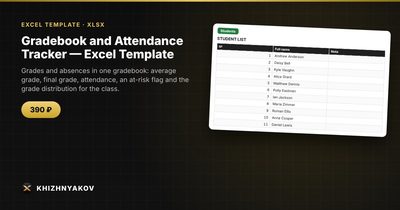
The Gradebook and Attendance Tracker is a paid Excel template built on this approach. It has four sheets: "Settings" (class, subject, period, risk threshold and allowed number of absences), "Students" (a list of up to 40 people), "Gradebook" (up to 40 class dates, grades 1 to 5 and "a", colour highlighting, average grade, absences, attendance and final grade) and "Results" (the status of each student, grade distribution, knowledge quality, pass rate and a chart).
The sheet accepts only valid entries, and the final grade is the average rounded by the threshold you set. Students are highlighted in red when the average is below the threshold or absences exceed the allowed number. Note that the gradebook's scale is the one in the file, so check that it matches your system before you start. It suits teachers in schools and colleges, instructors of clubs and sports sections, tutors and group leaders, for any class or group of up to 40 people. It comes as a blank spreadsheet and a filled-in sample with fictional data, works in Excel 2007 and later and LibreOffice, without macros. Calculations are approximate.
FAQ
Can I use a letter scale instead of numbers?
For formulas, numbers are much easier. You can map letters to points in a lookup table and convert at the end.
How do I handle excused absences?
You can use "a" for all and keep a separate note, or decide that excused absences are not counted. Whatever you choose, write it in the settings area.
What if students have different numbers of grades?
The average handles it, since it only uses the cells that contain a grade. For weighted grades, add a weight column and use SUMPRODUCT.
Can parents see the file?
Better not. Export or print a single student's row for a parent meeting.