KHIZHNYAKOV
Incoming and Outgoing Documents Log in Excel: Numbers, Deadlines and Control
Incoming and Outgoing Documents Log in Excel with Deadline Control and Filing Index — Open the template →
Letters arrive, requests pile up, and someone asks: did we answer that? When was it due? Who has it? In many offices the answer is a search through email and paper folders. A correspondence log in Excel gives you the answer in seconds, and the setup takes an afternoon.
This guide explains how to design the log, number documents automatically, calculate deadlines and statuses, and link outgoing replies to incoming letters.
Two logs, one logic
Keep incoming and outgoing documents on separate sheets, because they carry different details.
Incoming: registration number, date received, sender, sender's reference number and date, document type, short summary, instruction (what is to be done), assignee, deadline, completion date.
Outgoing: number, date, addressee, summary, assignee, signatory, the incoming number being answered, delivery method.
Use dropdown lists for document types, assignees, signatories and delivery methods, so the same person is never entered in three spellings.
Step 1: Registration numbers
A number such as IN-0042/2025 is built from three parts: a prefix, a sequence number and the year.
=Prefix&"-"&TEXT(ROW()-ROW(Header),"0000")&"/"&Year
Put the prefix and year in a settings sheet. One warning: if numbers depend on row position, do not sort or delete rows afterwards. Insert new documents at the bottom and filter instead of sorting.
Step 2: Deadlines
Each document type can have its own default deadline in days. A formula pulls it from a table:
=IF(Days=0,"",ReceivedDate+VLOOKUP(Type,TypeTable,2,0))
Setting the days to 0 switches control off for that type, which is useful for information-only letters. A default of 30 calendar days is common, but it is only an example: check it against your own rules. Instructions from higher-level organizations may state their own date, which you then enter manually.
Step 3: Status and traffic light
- Completed: a completion date exists
- Overdue: no completion date and deadline earlier than today
- Due soon: deadline within, say, 5 days
- In progress: everything else
=IF(Done<>"","Completed",IF(Deadline="","No deadline",IF(Deadline<TODAY(),"Overdue",IF(Deadline-TODAY()<=5,"Due soon","In progress"))))
Color the rows: red, yellow, green. The overdue and due-soon documents can then be pulled onto a control sheet that you print for the weekly meeting.
A worked example
A request arrives on 3 March. Type: "Request", default deadline 30 days. Deadline = 2 April. The assignee replies on 28 March, and the outgoing letter number OUT-0017/2025 is entered with the incoming number. The incoming row then shows the reply number and a completion date, and the status becomes "Completed". The check also compares the reply date with the deadline: 28 March is before 2 April, so the document was closed on time.
Step 4: Summary
Count documents by month, assignee and correspondent with COUNTIFS, and calculate the share completed on time. The assignee view shows workload; the on-time share is a good conversation starter in meetings.
A word on filing indexes
If your organization uses a filing plan, add a column with the file index and a small table listing each index with its retention period. Entering the index at registration is far easier than sorting papers a year later. Retention periods are set by your own schedule and local requirements.
Common mistakes
- Sorting a log with formula-based numbers. Use filters.
- Free-text assignees. Use a list.
- No reply link. Without it you cannot prove what was answered.
- Storing personal data casually. Keep summaries short and restrict file access; check your local rules.
- One deadline for every document type. Differentiate by type.
Ready-made template: incoming and outgoing documents log
The Incoming and Outgoing Documents Log is a paid Excel template that includes all of the above.
- Instructions: how to fill it in within five minutes, what the colors mean and a personal data warning.
- Settings: organization, year, default completion deadline, number format, and lists of document types (each with its own deadline), correspondents, assignees, signatories and delivery methods.
- Incoming and Outgoing: up to 500 entries each, with automatic numbers, status, traffic light, checks and linking of a reply to the incoming document.
- Deadline Control: a ready list of overdue and due-soon documents.
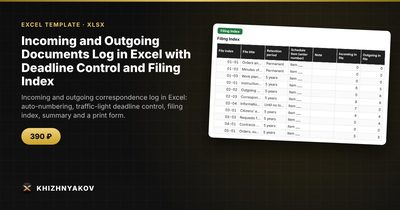
- Filing Index: an editable list of file indexes with retention periods and a count of documents in each file.
- Summary: by month, assignee and correspondent, and the share completed on time, with a chart.
- Print Log: the incoming registration log for the selected month with signature columns.
It works in Excel 2007 and later and LibreOffice, with no macros or external links. Deadlines, number format, retention periods and filing index in the sample are illustrative; check them against your own rules and retention schedule. This is a working log form, not an official one.
FAQ
Can the log replace a document management system?
For a small office, often yes. For large volumes, approval workflows or many simultaneous users, a dedicated system is more suitable.
Should I scan and link the documents?
Keep scans in a folder named by registration number. The number in the log is then all you need to find the file.
What if the deadline is moved?
Enter the new date in the deadline cell. Status and colors recalculate, and a comment column can record why.
How do I handle documents with no reply needed?
Set the document type's deadline to 0 days or leave the deadline empty, so it never shows as overdue.