KHIZHNYAKOV
Task Tracker in Excel for Managers: Assignments, Deadlines and Overdue Items
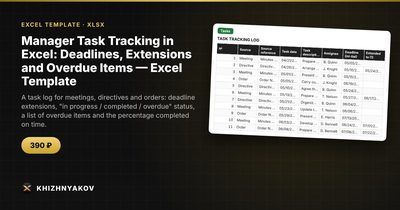
Manager Task Tracking in Excel: Deadlines, Extensions and Overdue Items — Excel Template — Open the template →
Meetings produce decisions, and decisions produce tasks. Two weeks later nobody remembers who was supposed to do what, or the deadline has quietly moved twice. The manager asks, the assignee apologizes, and the cycle restarts.
A task log in Excel does not need to be elaborate. It needs a source, an owner, a deadline, a record of extensions and an honest completion date. This guide shows how to build one, and how to calculate fair on-time statistics.
What to record for every task
- Source: which meeting, order or directive it came from
- Reference number or date of the source
- Task description (one clear sentence)
- Assignee
- Deadline
- Extensions (new dates, at least two)
- Actual completion date
- Status, days overdue and number of extensions, all calculated
The source column is underrated. When someone asks "why are we doing this?", you can answer in seconds.
Step 1: Current deadline
If you allow extensions, the current deadline is the latest date in the row:
=MAX(Deadline,Extension1,Extension2)
Keep the original deadline intact. Then you can see both whether the task was done on the current deadline and whether it was done on the original one.
Step 2: Status
=IF(Completed<>"","Completed",IF(CurrentDeadline<Today,"Overdue","In progress"))
Add IF logic to split completed tasks into "on time" and "late" by comparing the completion date with the current deadline. Days overdue for an open task is =Today-CurrentDeadline.
Use a single cell for "Today" instead of TODAY() everywhere. Then you can type a past date and see exactly how the situation looked on that day, which is valuable for reports.
Step 3: The overdue list
On a separate sheet, list open tasks past their deadline, oldest first. This is the page for the next meeting. The approach is the same as for any sorted extract: a helper key per row (deadline plus a small row-based fraction) and SMALL/INDEX/MATCH to display them in order.
Step 4: Fair on-time statistics
Be careful with the percentage. A naive formula divides completed on time by all tasks, which punishes people for tasks that are still in progress and not yet due. A fairer one is:
On-time share = Completed on time / (Completed + Overdue)
Tasks that are in progress and not yet due are excluded because their outcome is unknown. Calculate it by assignee and by month, and keep a second figure for "on the original deadline" so that frequent extensions are visible.
A worked example
Anna has 10 tasks in March: 6 completed on the current deadline, 1 completed late, 1 overdue and 2 in progress and not yet due.
- Completed + overdue = 6 + 1 + 1 = 8
- On-time share = 6 / 8 = 75%
If 3 of those 6 on-time tasks were extended once, the share on the original deadline is 3 / 8 = 37.5%. Both numbers are true, and the gap between them is a useful talking point about how realistic the deadlines were.
Common mistakes
- Vague descriptions. "Look into the report" cannot be completed or overdue; write the result expected.
- Overwriting deadlines. Keep the original and add extensions.
- No owner. One assignee per task, even if several people help.
- Too many tasks per meeting. If the list is endless, the log becomes a graveyard.
- Using percentages as a weapon. They are a management tool; the procedure for handling delays follows your own internal rules.
Ready-made template: manager task tracking
The Manager Task Tracking template is a paid Excel file built on this structure.
- Reference lists: assignees, task sources, the current date and the year for the monthly breakdown.
- Tasks: up to 500 tasks with source, reference, date, description, assignee, deadline, two extensions, actual completion, status, days overdue and number of extensions.
- Overdue: an automatic list of uncompleted tasks past their deadline, oldest first.
- Summary: share completed on time by assignee and by month, with and without extensions, and charts.
It suits managers and deputies, personal assistants, secretaries, office and control staff, and project managers. It works in Excel 2007 and later and LibreOffice, with no macros. Status and percentages are an organizational tool: the procedure and deadlines for completing tasks are set by your own internal rules.
FAQ
How many extensions should I allow?
Two is usually enough to show a pattern. If a task needs a third, it is probably badly defined and deserves a rewrite.
Can I use this for personal to-dos?
Yes, but a manager's log focuses on delegation: the assignee column is what makes it work.
What is the best time to review the log?
Right before and at the start of the weekly meeting: review the overdue list, agree new dates and close finished items.
Should closed tasks be deleted?
No. Keep them for statistics. Filter on the status to hide them from daily view.