KHIZHNYAKOV
How to Keep an Internal Audit Plan and Check Log in Excel
Internal Checks Plan and Log in Excel: Schedule, Violations, Corrections — Open the template →
A check plan usually starts life as a Word table in January. By March the real results are sitting in reports, emails and someone's notebook, and nobody can say quickly which checks are late or which violations are still open. The checks themselves are rarely the problem. The follow-up is.
This guide shows how to keep a plan and a log of internal checks in one Excel table, how to calculate deadlines and statuses with a few formulas, and how to track corrections so findings do not quietly expire. The method works with a blank workbook; a ready-made file is described near the end.
Step 1: One row per check
Resist the urge to build one sheet for the plan and another for results. Use a single table where every check is a row and the columns move left to right through its life:
| Column | Example |
|---|---|
| Type of check | Fire safety walk-through |
| Department | Warehouse |
| Topic | Emergency exits and signage |
| Assignee | M. Rivera |
| Planned start | 03/04/2026 |
| Duration (days) | 3 |
| Planned end | calculated |
| Actual end | blank until done |
| Violations found | 4 |
| Correction deadline | 04/30/2026 |
| Corrected | 2 |
Use drop-down lists (Data > Data Validation > List) for type, department and assignee. Free text in these columns is the main reason summaries later fall apart: "Warehouse", "warehouse" and "Whse" count as three departments.
Step 2: Calculate the planned end and the status
If duration is counted in calendar days and the start day is the first day of the check, the planned end is the start plus duration minus one:
=C2+D2-1
The status can then be derived instead of typed in. Suppose planned end is in column E, actual end in F, and today's date comes from TODAY():
=IF(F2<>"","Done",IF(E2<TODAY(),"Overdue",IF(E2-TODAY()<=14,"Due soon","Planned")))
Change 14 to whatever warning window suits you. Put that number in a settings cell and refer to it, so you can change it without editing formulas.
Add conditional formatting (Home > Conditional Formatting > New Rule > Use a formula) so "Overdue" rows turn red and "Due soon" rows turn yellow. That is your traffic light.
Step 3: Track the correction separately
The most common mistake is treating a check as finished when the report is signed. The check is finished; the violations are not. Give corrections their own columns and their own status:
- Violations found
- Corrected so far
- Remaining:
=I2-K2 - Correction deadline
- Correction status:
=IF(I2=0,"No violations",IF(K2>=I2,"Closed",IF(J2<TODAY(),"Overdue","In progress")))
Now you can filter for every open correction regardless of when the original check happened. A check can be "Done" and its correction "Overdue" at the same time, which is exactly the situation people tend to miss.
Step 4: Summarize by month and by person
Two summaries cover most management questions. For plan completion by month, add a helper column with =MONTH(E2) and use COUNTIFS:
=COUNTIFS(Month,3,Status,"Done")/COUNTIFS(Month,3)
For assignee workload, count open checks per person:
=COUNTIFS(Assignee,"M. Rivera",Status,"<>Done")
A PivotTable gives the same answer in two clicks, but formulas keep working when you paste new rows in without refreshing anything.
Common mistakes
- Typing statuses by hand. They go stale the day after you set them. Calculate them from dates.
- Merging planned and actual dates into one column. You lose the ability to measure delays.
- No report date. If you cannot check "what was overdue on the last day of the quarter", every quarterly report is a guess. Keep a report-date cell that defaults to today.
- Counting working days when the rule says calendar days, or the reverse. Decide once and write it in the header.
- Letting the file grow without limits. Start a new workbook each year and carry over only open items.
Ready-made internal checks plan and log
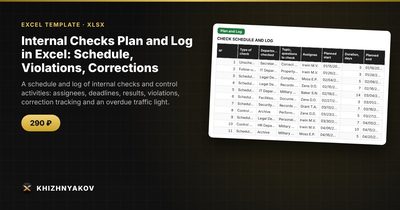
If you would rather not build and debug all this, the Internal Checks Plan and Log template does it for you. You enter a check as a row, and the planned end date is calculated from the start and duration. Two traffic lights show whether the check and its correction are overdue or due soon, and violations and correction deadlines are tracked on their own.
The workbook has three sheets. "Lists" holds the plan year, types of checks, departments, assignees and the "due soon" setting. "Plan and Log" takes up to 500 checks with planned and actual dates, violations and corrections. "Summary" shows plan completion by month, statuses, assignee workload and uncorrected violations, with two charts. You can also enter a report date on "Lists" to see the status as of a past day.
It suits managers and specialists in internal control, compliance, security, HR and facilities. It runs in Excel 2007 and later and in LibreOffice, with no macros. This is a paid template. It is a plan and log for record keeping and deadline control, not a replacement for audit reports, so check thresholds, report forms and procedures against your own internal documents and local requirements.
FAQ
How many days before the deadline should "due soon" start?
Fourteen days works for most monthly or quarterly plans. For short checks of two or three days, a week is plenty. Pick a value that gives the assignee time to act, not just to worry.
Should the plan and the log be separate sheets?
It is usually better to keep them together. Separate sheets mean copying data when a check happens, and copies drift apart. One row from plan to closed correction keeps everything consistent.
How do I show a check that was moved to a new date?
Add a column for the original planned date and keep it unchanged, then edit the planned start. The gap between the two shows how often plans slip.
Can Excel replace audit software?
For a small team with a few hundred checks a year, yes. You get deadlines, statuses and summaries. You will miss workflows, approvals and an audit trail, so if those matter, use specialist software.