KHIZHNYAKOV
How to Monitor Department KPIs in Excel: Plan vs Actual, Traffic Light, Ranking
Department Indicator Monitoring in Excel: Plan vs Actual, Ranking, Traffic Light — Open the template →
When an organization has several departments and dozens of indicators, the numbers live in different files, in different formats, sent at different times. At the monthly meeting the manager sees individual figures but not the whole picture: who is on target, who is slipping, and which problem is the biggest.
A single Excel workbook can fix that. Below is a method for tracking plan versus actual by month, calculating attainment correctly for different kinds of indicators, colouring a traffic light and ranking departments.
Step 1: Define the indicators properly
Before touching Excel, write down for each indicator:
| Indicator | Unit | Better when | Accumulates? | Weight (1 to 5) |
|---|---|---|---|---|
| Sales | $ | Higher | Yes, sums over months | 5 |
| Customer complaints | count | Lower | Yes | 3 |
| Average response time | hours | Lower | No, averaged | 4 |
| Satisfaction | % | Higher | No, averaged | 3 |
The two columns that cause the most trouble are "Better when" and "Accumulates". If you skip them, a falling complaints count looks like a failure and a year-to-date response time gets added up, which is meaningless.
Step 2: Plan and actual by month
Make two sheets with the same layout: one row per department and indicator pair, and months January to December across. Plan on one sheet, actual on the other. Keep the pair names identical or, better, copy them from the plan sheet to the actual sheet with a formula such as =Plan!A2 so they cannot drift apart.
Step 3: Calculate attainment
For indicators where higher is better:
=Actual/Plan
For indicators where lower is better, such as complaints or turnaround time, flip it:
=Plan/Actual
Cap the result so one exceptional indicator does not hide others. A cap of 150% is a common choice:
=MIN(Cap, IF(Direction="Higher",Actual/Plan,Plan/Actual))
Also guard against division by zero with IFERROR.
For the year to date, use January through the reporting month. For indicators that accumulate, sum the months with SUM; for rates and times, take the AVERAGE. Mixing these up is the single most common calculation error in KPI sheets.
Example: sales plan for January to March is 90,000 and actual is 81,000. Attainment is 81,000 / 90,000 = 90%.
Step 4: Traffic light and ranking
Set two thresholds in settings, for example 95% for "on target" and 80% for "at risk":
=IF(A>=OnTarget,"Green",IF(A>=AtRisk,"Yellow","Red"))
A department's overall score is the weighted average of its indicators:
=SUMPRODUCT(Attainment,Weight)/SUM(Weight)
Rank departments with =RANK(score,all_scores).
| Department | Score | Rank |
|---|---|---|
| Sales | 96% | 1 |
| Support | 88% | 2 |
| Logistics | 72% | 3 |
A trend column makes the ranking more useful: compare this month's attainment with last month's and show an arrow or a plus/minus. A department in second place and falling is a different story from one in third place and rising.
Common mistakes
- Treating all indicators as "higher is better".
- Equal weights for unequal indicators. Weights are how you express what matters.
- Changing plans retroactively so the numbers look better. Freeze approved plans.
- Too many indicators. Ten well chosen ones beat fifty that nobody reads.
- Thresholds nobody agreed. The traffic light is only useful when departments accept what red means.
Ready-made KPI monitoring workbook
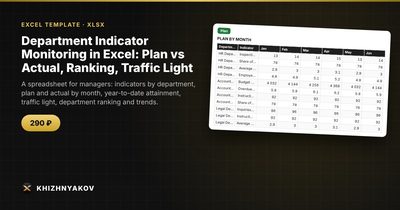
The Department Indicator Monitoring template has this logic built in. Plan and actual are entered by month, and the spreadsheet calculates attainment, colours the traffic light, builds a department ranking and shows whose trend is rising and whose is falling.
There are four main areas. "Lists" holds the year, reporting month, traffic-light thresholds, departments (up to 12) and indicators (up to 20) with unit, direction, accumulation and weight. "Plan" and "Actual" take up to 200 "department - indicator" rows with months from January to December, and in "Actual" the names are filled in automatically. "Calculation" shows year-to-date attainment, the traffic light, change versus the previous month and attainment for each month. "Summary" gives the department ranking, the number of indicators in the green, yellow and red zones, a monthly trend table and two charts. The maximum credited attainment is a setting, 150% by default.
It suits heads of departments and organizations, control and reporting specialists, and unit managers who want a clear overview without complex systems. It runs in Excel 2007 and later and LibreOffice, with no macros. This is a paid template. The thresholds and weights are your own internal benchmarks, so check them against your organization's current plans and orders.
FAQ
How many indicators per department is sensible?
Five to eight is typical. Fewer than that misses important things; more makes the picture noisy.
What if the plan is zero for a month?
Attainment cannot be calculated by division. Leave the plan blank for that month so it is skipped, or give it a small agreed value.
Should I use year-to-date or monthly attainment?
Look at both. Monthly figures show current performance, and year-to-date shows whether the annual goal is still within reach.
Can I compare departments with different indicators?
Yes, because the comparison is based on attainment percentages, not raw values. Weights and thresholds should still be agreed so that the comparison is fair.