KHIZHNYAKOV
How to Build a Meeting Room Booking System in Excel
Meeting Room and Office Booking — Excel Template — Open the template →
Two teams turning up for the same meeting room at 10:00 is one of those small office problems that eats a surprising amount of goodwill. A shared calendar helps, but plenty of offices, schools and coworking spaces do not have room resources set up, or they simply want one place where every booking, room and attendee count is visible.
Excel handles this well. You do not need macros or a booking app: a log of bookings, a short list of rooms and two or three formulas will tell you immediately when a new booking collides with an existing one. This guide shows how to set it up, with the exact formulas, and then points to a ready-made file if you would rather not build it yourself.
Step 1: Set up two tables
Start with a Rooms table: room name and capacity. Keep it short and give every room a unique name, because the names are what the lookup formulas will match on.
| Room | Seats |
|---|---|
| Boardroom | 12 |
| Meeting Room A | 6 |
| Huddle Room | 4 |
Then create a Bookings table with one row per booking:
| Date | Room | Start | End | Booked by | Subject | Attendees |
|---|---|---|---|---|---|---|
| 11/9/2026 | Meeting Room A | 9:00 | 10:30 | Dana | Sprint review | 5 |
| 11/9/2026 | Meeting Room A | 10:00 | 11:00 | Marcus | Client call | 3 |
| 11/9/2026 | Meeting Room A | 10:30 | 11:30 | Priya | Interviews | 7 |
Format the date column as a date and the time columns as time (h:mm). Excel stores times as fractions of a day, which is exactly what makes the overlap check possible.
Step 2: Detect overlaps
Two bookings overlap when they are in the same room on the same day, one starts before the other ends, and the other starts before the first one ends. Put it into a single COUNTIFS formula. With dates in column A, rooms in B, start times in C and end times in D, enter this in a helper column (row 2):
=IF(COUNTIFS($A$2:$A$500,A2,$B$2:$B$500,B2,$C$2:$C$500,"<"&D2,$D$2:$D$500,">"&C2)>1,"Overlap","OK")
The formula counts bookings that clash with this one. The booking always counts itself, so anything above 1 means a real conflict. In the example, Dana's 9:00–10:30 meeting and Marcus's 10:00–11:00 meeting both show “Overlap”. Priya's 10:30–11:30 booking clashes with Marcus's too, but not with Dana's, because a meeting that ends at 10:30 and one that starts at 10:30 do not overlap. That is why the formula uses strict “less than” and “greater than” rather than “less than or equal”.
Step 3: Check capacity and duration
Capacity is a lookup against the Rooms table:
=IF(G2>VLOOKUP(B2,Rooms!$A$2:$B$20,2,FALSE),"Not enough seats","OK")
Priya's seven interviewers in Meeting Room A (six seats) would be flagged straight away. Duration in hours is simply =(D2-C2)*24; Dana's meeting comes out at 1.5.
Step 4: See the whole day at a glance
A booking log is good for data entry, but people want to see a day as a grid: rooms across the top, half-hour slots down the side. Build the time column in 30-minute steps (0:30 is 1/48), choose the date in one cell, and fill each grid cell with a COUNTIFS that checks whether that room has a booking covering the slot. Add conditional formatting so any cell with a count of 1 turns blue and 2 or more turns red.
Common mistakes
- Typing times as text. “9.30” or “9h30” will not calculate. Use a real time format.
- Inconsistent room names. “Meeting Room A” and “Meeting room A ” (with a trailing space) are different rooms to Excel. Use a drop-down list from the Rooms table.
- Using “less than or equal to” in the overlap test, which flags back-to-back meetings as conflicts.
- Forgetting buffer time. If rooms need ten minutes for cleaning or setup, add that to the end time in the formula rather than relying on people.
Ready-made template
If you would rather start with something that already works, the “Meeting Room and Office Booking” template is built on exactly this logic. It is a paid template.
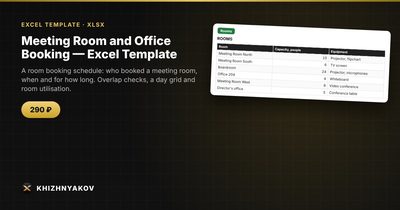
- “Rooms” holds your meeting rooms and offices with their capacity.
- “Bookings” takes the date, time, room, who booked, subject and number of participants; duration, overlap check and seat check are calculated for you, with a status of “Overlap” or “Not enough seats” when something is wrong.
- “Day” shows room occupancy in 30-minute steps for the date you choose in “Settings”.
- “Summary” counts bookings, overlaps and over-capacity bookings, and shows hours and bookings per room.
The list holds up to 12 rooms; the day grid and the summary show the first 6. It works in Excel 2007 and newer and in LibreOffice, uses ordinary formulas and needs no macros. It also suits rentals, such as managing offices in a coworking space.
FAQ
Can I use this for more than meeting rooms?
Yes. Anything that is booked by date and time works the same way: equipment, vehicles, training rooms or desks. Just rename the “Rooms” list.
Should I use Excel or the Outlook calendar for room booking?
If everyone already books through room resources in a calendar, keep doing that. An Excel log is better when you need utilisation figures, when bookings come in by phone or email to a receptionist, or when you do not have room calendars at all.
How do I stop people from overwriting the formulas?
Lock the formula columns and protect the sheet without a password, leaving only the input columns unlocked. That keeps accidental edits out without making maintenance difficult.
How do I measure room utilisation?
Add up booked hours per room with SUMIFS and divide by the hours the room is available, for example 9 hours a day times the number of working days. Anything consistently below 30 percent is a candidate for repurposing.