KHIZHNYAKOV
How to Turn a Data Export into a Ready Report in Excel
Report from a Data Export — Excel Template — Open the template →
Every reporting cycle looks the same. A system produces an export with a date, a category, a counterparty, a quantity and an amount. Someone pastes it into Excel and spends the next hours building the same totals, comparisons and charts as last month. The work is repetitive, and repetitive work should be built once.
This guide shows how to set up a workbook where you paste the data and the report updates itself. It also covers the data checks that save you from presenting a wrong number to a manager.
Step 1: A clean data sheet
Make one sheet for raw data with a header row and nothing else: no merged cells, no totals, no blank lines. Leave the columns in the same order the export produces so you can paste without rearranging.
| Date | Category | Counterparty | Quantity | Amount |
|---|---|---|---|---|
| 01/14/2026 | Office | Northwind | 12 | 480.00 |
| 01/22/2026 | IT | Contoso | 3 | 1,950.00 |
Next to the pasted columns add helper columns that your formulas will use:
- Month:
=MONTH(A2) - Year:
=YEAR(A2) - Key (for matrix lookups):
=B2&"|"&F2
Fill these formulas down to the last row you expect to use. Paste only into the raw columns.
Step 2: Totals by month
On a summary sheet, list months 1 to 12 and use SUMIFS:
=SUMIFS(Data!$E:$E,Data!$F:$F,A2,Data!$G:$G,ReportYear)
Here F is the month helper, G is the year helper and ReportYear is a cell on a settings sheet.
Then growth against the previous month:
=IF(B2=0,"",C3/B2-1) laid out so each row compares with the row above, and against the same month last year:
=SUMIFS(...,Year,ReportYear-1) in a second column, then divide.
Example: March revenue 18,400 against February 16,000 gives growth of 15%; against March last year, 14,720, it gives 25%.
Step 3: Top lists and a category-by-month matrix
For the top categories, compute the total for each category with SUMIFS, then rank them with LARGE and fetch the name with INDEX/MATCH:
=LARGE(totals,1) and =INDEX(names,MATCH(LARGE(totals,1),totals,0))
Ties can break this, so add a tiny tie-breaker such as +ROW()/1000000 to each total.
A category-by-month matrix is a grid of SUMIFS with the category in the row and the month in the column. Conditional formatting colour scales turn it into a heat map that tells the story at a glance.
Step 4: Check the data before trusting it
Most wrong reports come from bad data, not bad formulas. Add a check area with a few counters:
- Blank dates:
=COUNTBLANK(A2:A5001) - Text instead of numbers in the amount column:
=SUMPRODUCT(--ISTEXT(E2:E5001)) - Dates outside the report year:
=COUNTIFS(A:A,"<"&DATE(ReportYear,1,1))+COUNTIFS(A:A,">"&DATE(ReportYear,12,31)) - Duplicate rows:
=COUNTIFS(...)>1across the main columns
If any counter is above zero, the report should say so. A red "check data" cell next to the headline figure is enough.
Common mistakes
- Dates imported as text. Totals by month silently skip them. Convert them before pasting.
- Amounts with a thousands separator typed as text. The same problem.
- Overwriting formulas by pasting too wide.
- Referring to whole columns in dozens of formulas, which slows large files. Use a fixed limit such as row 5001.
- No fixed report year. Put it on a settings sheet instead of editing formulas each year.
Ready-made report from a data export
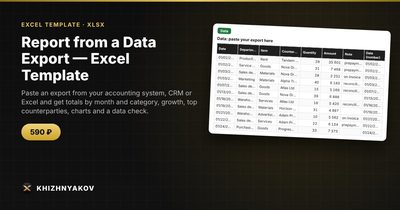
The Report from a Data Export template follows this design. You paste any data export with a date, categories, counterparty, quantity and amount, and get totals by month and category, growth, rankings and charts. The column names are configurable to match your export.
There are five sheets. "Settings" holds the report year and the column names of your export. "Data" has a header and 5,000 rows for pasting, plus helper normalization columns (month, year, keys). "Summary" shows totals by month, growth against the previous month and the same month last year, the top 5 categories, the top 10 counterparties, a category by month matrix, and bar and pie charts. "Period selection" gives amount and quantity for any period and chosen categories. "Data check" reports blank dates, text instead of numbers, dates outside the period and duplicates, with counters and explanations.
It suits accountants, managers, department heads and anyone who builds summaries from exports by hand. It runs in Excel 2007 and later and LibreOffice, with no macros and no new functions. Limits are 5,000 rows, 30 categories and 200 counterparties. This is a paid template.
FAQ
Why not just use a PivotTable?
PivotTables are great for exploration. A formula-based report is better when you need the same layout every month, fixed positions for charts and no refreshing step.
What if my export has more rows?
Split it by period, for example one workbook per quarter, or aggregate it before pasting. Keep within the limits of your workbook.
Can I add my own columns?
You can add columns outside the main data area, but formulas will not use them unless you extend them.
How do I avoid presenting wrong numbers?
Always check the data-check counters before you read the totals. If any are not zero, fix the data first.